
Canvas
Getting around the infinite board, adding and generating images, video, and dialogue audio, editing images, organizing with frames, and tagging media so the rest of the project can use it.
Canvas View
Canvas is your freeform workspace for images, video, audio, text, and frames. Arrange references and generated media side by side. The Timeline sits above the board, the toolbar at the lower left, the generation box at the bottom, and the minimap at the lower right. Use the minimap to find your way around a large board.
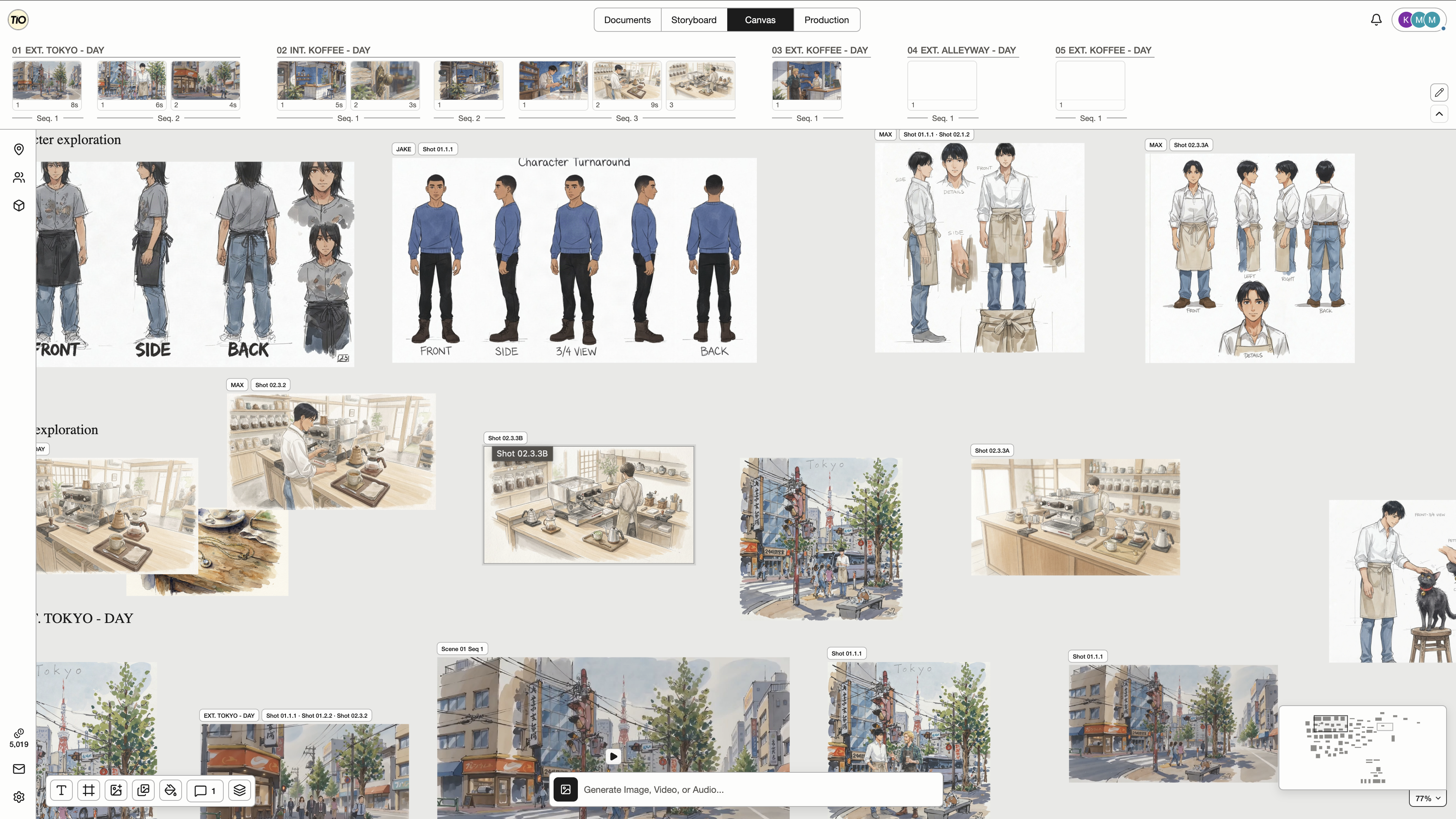
Open the Universal Asset Sidebar by clicking Scenes, Characters, or Props in the left rail while on Canvas. Select an asset to browse its reference images. Drag an image onto blank Canvas to add a copy; you can also drag an asset row with a thumbnail onto blank Canvas to copy its first image. Dropping an asset row onto an existing Canvas image tags that image to the asset instead.
Open the Canvas Timeline Sidebar by selecting a Shot in the Timeline above Canvas. It opens on the right with Shot Details; selecting a Scene or Sequence opens Scene Kit. Switch between the Shot Details and Scene Kit tabs to find the references you need. Drag an image from Shot Media or Scene Kit onto blank Canvas to work with it on the board.
Both sidebars are available while you work on Canvas. With editing access, drag reference images from either sidebar onto the board, or into a supported reference input in the generation box. A board drop adds visual context; a generation-box drop adds a reference to your draft. Dragging a reference does not start generation.
| Control | What it does |
|---|---|
| Scroll, Space + drag, or middle-mouse drag | Pans the board. Trackpad scrolling pans even when the pointer is over a text box. |
| Cmd/Ctrl + scroll or pinch | Zooms around the pointer. The current zoom percentage shows on the minimap tab. |
| Click, Shift + click, or drag on empty space | Selects one item, adds to the selection, or marquee-selects everything the rectangle touches. Selected media shows corner resize handles that keep the aspect ratio. |
Canvas Toolbar
Open Generation history from the Canvas toolbar to browse saved requests, newest first, with 20 requests per page. History fills the current Canvas surface and opens in Grid view. Use Back to Canvas to return to your workspace. Switch between List and Grid using the buttons beside the filters. Grid cards show a square preview, prompt excerpt and model name. Select a grid card to open that generation’s media and details. Filter by creator, media type or status. Select an image to enlarge it; prompts and settings appear beside the media, with attribution and actions below. Shared and team projects include the people who actually generated on that Canvas, including former collaborators. Each request groups its outputs. Missing files show Media unavailable while saved details remain visible. Download available outputs, show an existing output on Canvas, or reuse settings in the composer without starting a generation. Viewers can browse and download; reusing settings requires editing access. Soft-deleted requests are excluded.
From left to right, the toolbar provides the following tools. You can also drop media files directly onto the board.
| Control | What it does |
|---|---|
| Text | Arms a one-shot placement tool. The next click anywhere on the board creates a text box there and puts you straight into editing. Escape cancels. Default text uses dark ink in light mode and light ink in dark mode. |
| Frame (F) | Draw a rectangle to create a frame, or click once for a default frame. Frames group media so you can move it together. |
| Upload image | Opens a file picker for images, MP4/MOV video, or MP3/WAV audio. Files land near the center of the current view. |
| Import Asset Image | Copies an existing Scene, Character, or Prop image onto the board as an untagged visual reference. The original asset is unchanged. |
| Canvas background | Choose a background color for the project Canvas, then Apply to save it. |
| Comments (C) | Opens the Canvas comments sidebar. Use pins to discuss specific points on the board. See Comments and Review for the full workflow. |
| Canvas Objects | Opens a list of every item on the board, including hidden ones. Click to select, double-click to rename, drag to reorder layers, and expand a frame to see its children. Hidden rows expose a direct Show button. |
3d Scene Editor
Block a scene with simple people and props, animate their positions, and design a camera move. Right-click empty Canvas space and choose 3d Scene Editor. Setups and exports stay on this device until you explicitly add a video to Canvas.
Choose Moving subject for a ready-to-play example, or start with Two people at a table, Small room, Product tabletop, or Empty.
Add practical blocking objects, identify the selected object, and use visible Duplicate/Delete controls. Arrow keys move a focused object-list row; Undo restores an accidental edit. Use People, Props, Shapes or Environment to add objects. Select an object in the view or list. Drag to move; Facing and Size rotate and resize it. Duplicate and Delete sit beside the selection controls; More reveals precise position and height.
Select an object → Animate object in the fixed bar above the view. Start and End controls open automatically. Choose a pin, then drag the object or enter X, Height and Z. Move the playhead and add a pin for a turn. Edit a pin’s time or drag its timeline diamond to choose when it arrives.
Choose a position pin, place the object, and set its arrival time. Numbered path helpers appear only in the navigation view; the clean shot and export omit them. Choose a subject and press Frame subject. The Shot camera is the PNG/MP4 output; the Navigation view only helps arrange objects. Choose an aspect ratio, then frame the subject again if needed. Reset view recovers navigation without changing the shot.
Navigation view and Reset view do not alter the output camera. Inspect Shot camera framing and the exact Start/End frames before export. Press Play to preview objects and camera together. Open Camera movement for Push in, Orbit and the other camera controls. Use Frame whole path for a static shot that fits the entire object move, or select a moving subject for the camera to aim at. Framing is not automatically resized.
Choose Export MP4 and keep the tab open until it finishes. Download the finished clip or use Capture PNG for a still image.
Export runs in this tab. Finished files stay local until Add to Canvas uploads a copy. Choose Add to Canvas to upload the finished video to this Canvas. Repeating Add reveals the existing copy; Add another copy creates a separate placement.
| Control | What it does |
|---|---|
| Add object | People, Props, Shapes and Environment include furniture, Car, Floor lamp, Cube, Sphere, Cylinder, Cone, Ramp, Bench, Open doorway and Platform. Objects are procedural and load in the browser. Floor is an Environment setting. |
| Reset view | Restore the navigation viewpoint only. Use Undo/Redo to recover object or camera edits; More → Reset size restores the selected object’s original scale. |
| Animate object | Up to 32 pins per object, with straight, constant-speed movement between each pair. Identical positions make a pause; objects hold before the first and after the last pin. This moves the whole object: no walking gait, physics, or automatic turning. Remove movement keeps the current position; Undo restores the path. |
| Edit movement | The selected object’s fixed action bar stays visible while the inspector scrolls or is collapsed. Edit movement opens the inspector and focuses a position pin without changing the path. |
| Duration (seconds) | Times align to 30 fps. A 5-second clip ends at frame 149 (4.97s). Shortening the clip trims paths at the new last frame; extending it keeps the old arrival times and holds the last position. Undo restores trimmed pins. |
| Frame subject | Fit the selected subject or group. Changing aspect ratio updates the preview; use this control to reframe explicitly. |
| Set from current view | Capture the arrangement viewpoint as the selected Start or End camera pose. Ordinary navigation leaves the shot unchanged. |
| Export MP4 | Silent MP4, 30 fps, 2–20 seconds, in landscape, portrait or square. Keep this tab open. |
| Add to Canvas | Upload an ordinary video to the current Canvas. Existing video-reference controls can use it where the selected model supports video. |
Image Styles
Styles may be unavailable in some environments. Existing styles and results are preserved. If a restored draft uses a disabled style, choose Remove style to keep your prompt and references and continue without it.
In Settings, use Image Styles under Beta features to turn the Canvas Style control on or off. It starts off and remembers your choice for your user in this browser. While off, new generations use no style and the Style browser is hidden. Turn it back on to restore your selected style; your prompt, references and saved styles are kept.
Open Style beside the image model, then New style. Name it and upload 4–10 images with a consistent look. Use PNG, JPG or WebP files, up to 4 MB and 4096 × 4096 pixels each. Save & use selects the style. A style contains images only; its name is not added to your prompt.
The selected style appears beside the model with one preview image and its name. Open it to browse or change styles, or choose Remove style to clear the selection.
Styles are grouped into Photography, Film & Cinema, Illustration, Painting & Drawing, Anime & Comics, 3D & Crafted, and Graphic & Print. Jump to moves between sections; owner tabs and name search update counts. Tio starts with 37 common styles, each illustrated by one reference image. Categories organize browsing only.
Subject and editing references come first. The studio fills the remaining model slots with available style images: at least four for personal styles, or one for Tio defaults. A ten-slot model with two subject references can use eight style images; a single-image default uses just one. If the required images do not fit, an error asks you to remove references or choose a model with a higher limit.
My styles are yours to reuse. Check projects under Available in to share project copies with their collaborators; the current project starts checked. Selecting a personal style in another project pins a copy there. Saved styles are fixed image sets. History restores the saved style and your original references. Saving a style does not generate an image or spend generation credits.
Media Generation Box
Click “Generate Image, Video, or Audio...” at the bottom of Canvas to expand the box. Choose a media type, describe what you want, add any references, and choose a model and its settings. Video modes and available controls depend on the model; Dialogue uses speaker turns and voices. Generate places results on Canvas, where placeholders show progress. The expanded asset browser becomes shorter when space is limited and scrolls inside the pill, keeping the prompt and bottom controls visible. Scroll its image gallery sideways with your trackpad or mouse wheel.
Image and video references use compact square thumbnails with plain tags underneath, matching Thruline Agent attachments. Click a tag to insert it into your prompt. Add-reference labels sit below the buttons. Opening the generation box collapses the Canvas toolbar. Image reference status messages appear at the bottom of the prompt, leaving settings available below.
New image and video settings inherit the project aspect ratio when the model supports it; otherwise they use the model default. Explicit size choices, restored generation settings, and source-driven sizing take precedence. Change the project ratio in Overview.
MiniMax H3 Max accepts MP3 or WAV audio references in References and Multi-Shot, including audio without an image or video. Each audio clip must be 2–15 seconds, with no more than 15 seconds of audio in total. Wait for the clip duration to load before generating.
Uploads and reference selections appear immediately as reference cards with a loading indicator while processing continues. You can keep editing your prompt. Failed items stay visible: use Retry when available, or Remove to leave them out. Generation becomes available when required references are ready or removed. Canvas imports and copies show movable placeholders; generation previews appear while submission is prepared. If a result cannot be confirmed, check the destination before adding it again. Retry loading refreshes an existing result without generating or charging again.
If a reference is no longer available, its bottom-right warning badge explains that you must replace it. Hover over or focus the badge for details. Generate stays unavailable while required references are missing or being checked. Remove or replace missing media; if a check fails, check your connection and return to the window to retry.
| Control | What it does |
|---|---|
| Image / Video / Dialogue toggle | Switches the composer between image, video, and dialogue-audio drafts. Each keeps its own prompt and references. |
| Reference tile | The dashed Optional tile adds an image when you want to guide or edit the result; text-only generation still works without one. Filled cards are draggable to reorder and have their own remove button. |
| Model picker | Lists model brands first, then families. Only models enabled in the Model Library appear. The favorite model is preselected on a fresh draft. |
| Aspect ratio chip | Opens a visual grid of ratios the selected model supports. Placeholders and the finished image use this ratio. |
| Output count (1×) | Choose how many outputs to generate, where supported by the selected model. |
| Settings | Open additional model options, such as resolution, quality, or output format. |
| Prompt sparkle | Rewrites your prompt for the selected model in more detail, keeping names, quoted text, and mentions intact. It runs only when you click it and never adds references. |
| Image History | Compact cards for every run in this scope with Restore, Download, and Delete. Restore refills the composer without generating. |
| Generate | Stays beside History in the settings row and shows only its icon when the composer is narrow. Hover or focus it for the estimate. Credits mode reserves the estimated credits and submits. Studio Package mode requires a current included-usage quote and holds the included units. If you do not have enough credits it opens the request dialog and keeps your draft. |
Using @ References
Type @ in the prompt to open the reference picker. Browse Scenes, Characters, or Props, choose an asset, then select one of its images. This attaches the image and inserts a reference badge at your cursor. You can also mention references already attached to the draft. Describe how each reference should be used; mentioning an asset here does not tag the generated result to that asset.
Type @ or click a reference tag to insert it at your cursor. A selected text range is replaced. The asset list scrolls independently; its close button closes only the picker, while the separate collapse button closes the expanded composer.
Right-Clicking Media
Right-click an image, video, or audio item to see its available actions. Options vary with the media type, selection, saved generation inputs, and your editing access. Tagging connects media to the rest of the project; organization actions control its place on the board.
| Control | What it does |
|---|---|
| Tag to Asset | Hover to choose Scene, Character, or Prop, then pick an existing asset. The image is copied into that asset's image library and the node shows the asset’s name in a neutral badge above its top-left corner. Choosing the checked asset again removes the tag. Episode scope lists only assets in that episode; All Episodes lists every project asset. |
| Tag to Scene Kit | Attaches the image to the Scene occurrence currently selected in the Timeline rail, for one-off references that belong to that moment rather than to a reusable asset. |
| Tag to Shot | Adds the image to the selected Shot’s unified media list, retaining its asset identity when tagged. Any image can be used in multiple Shots and Scenes. Dragging onto a Shot card does the same. |
| Tag to Sequence (video) | Assigns a video to a Scene and Sequence so it appears in Production history. The trigger shows the current assignment, for example Scene 01 • Seq 3; choosing the checked Sequence again unassigns it. Dropping a video on a Sequence tile in the rail does the same. A bordered Sequence label sits above the video like a frame name, leaving the entire preview clear in light and dark themes. |
| Remove asset tag | Keeps the image on the board as an untagged picture and removes the reference image that the tag created from the asset. In collaborative projects, removing that reference image from the asset sidebar also clears its Canvas tags; the Canvas images stay on the board. |
| Add to Prompt | Attaches the image to the current composer draft as a reference. Dragging the image into the prompt does the same thing. |
| Animate | Switches the composer to Video with this image as the Start Frame, ready for a prompt. With several images selected it uses them as References instead. Nothing is submitted until you press Generate. |
| Edit Image | Open image editing tools such as Brush, Multi-angle, Relight, or Adjustment. Available tools depend on the image. |
| Regenerate | Runs the exact same prompt, references, model, and settings again as a new job with a new seed. It waits for a fresh estimate first and retains the reviewed funding choice. |
| Reuse Prompt Inputs | Loads the prompt, references, model, and settings back into the composer so you can change something before generating. |
| Download Image / Download Video / Download MP3 | Save the selected media to your device. Images offer download format options. |
| Play / pause | Previews the video in place. Hovering the node also reveals a scrub bar, elapsed time, and a fullscreen button. |
| Extract Frame | Saves the current frame as a new image immediately to the right of the video. The context menu also offers first and last frame. Extracted frames are ideal Start or End frames for the next clip. |
| Mute / unmute | Toggles preview audio for this node. |
| Upscale 2x | Create a higher-resolution image or video; review the credit cost before confirming. |
| Rename | Names are not drawn over media, so use Canvas Objects or the context menu to rename. Generated media is named from its prompt automatically. |
| Duplicate (Cmd/Ctrl + D) | Makes an independent copy with its own file. Copies do not inherit asset, Shot, or Sequence tags. |
| Frame actions | Group media in a frame or remove it from its frame. Moving a frame moves its contents; deleting a frame keeps the contents. |
| Hide / Lock | Hidden items disappear from the board but stay in Canvas Objects with a Show button. Locked items cannot be moved or resized until unlocked. |
| Delete (Backspace) | Removes the item from the board. If it was tagged to an asset, the asset and its reference image remain. |
Delete selected Canvas objects together. Recoverable deletion offers one Undo for up to 30 seconds, including removed Shot associations and video Sequence tags, reviews, and comments. Independent Asset images and copies remain. Changed relationships can prevent Undo; an Asset image removed during recovery leaves the restored Canvas image untagged. Stored files are cleaned up after remaining references and recovery holds release them. If the deletion dialog says the action cannot be undone, it remains permanent.