
Downloads and Exports
Download an individual image, video, or script, or choose exactly what goes into a project ZIP.
Download Individual Assets From Canvas
Save individual images, videos, or audio directly from Canvas using the right-click menu. Downloads keep the original format and quality, with a matching file extension.
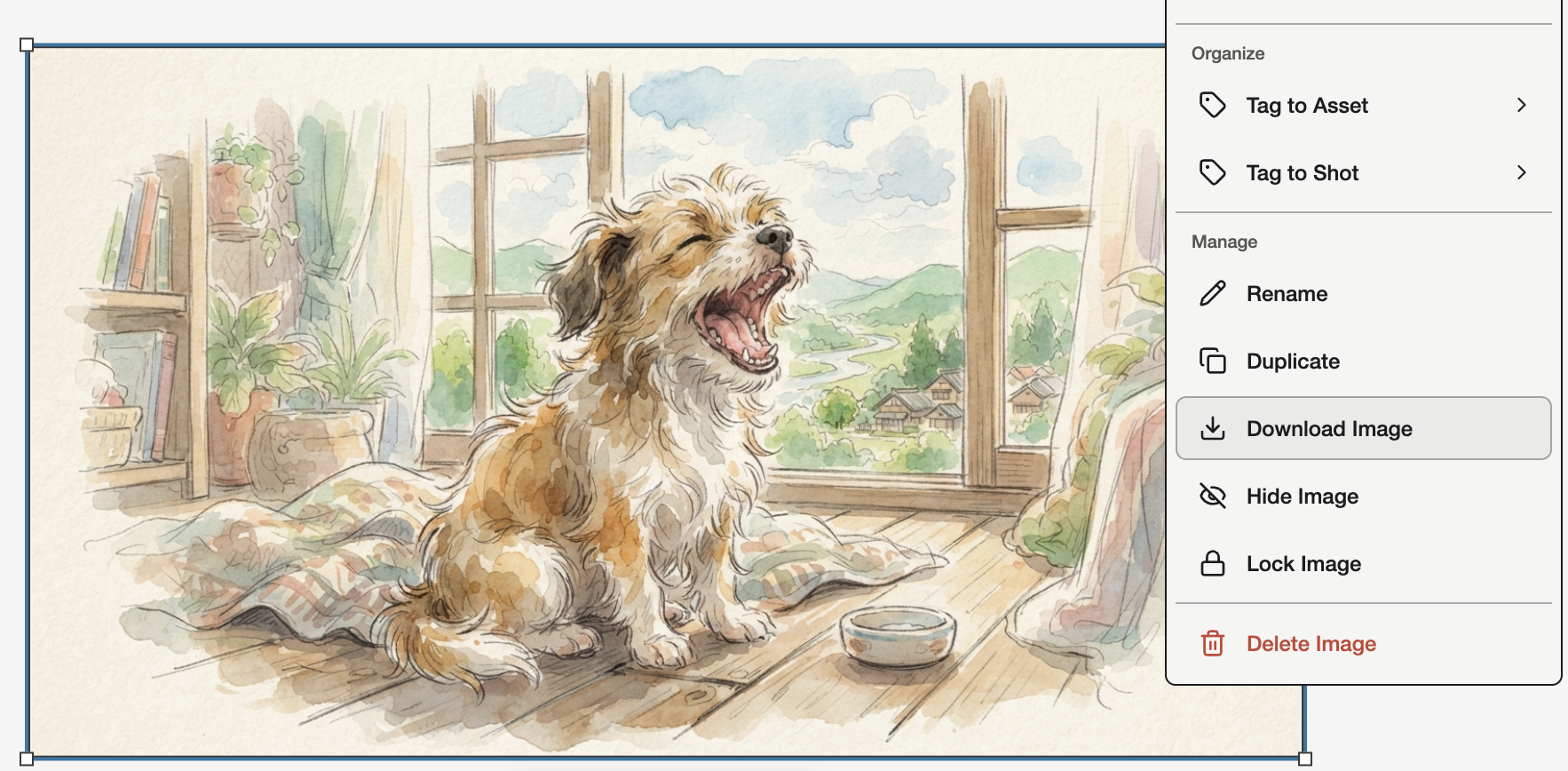
Open Canvas and find the image, video, or audio you want to save.
Right-click the media to open its context menu.
Choose Download Image, Download Video, or Download Audio to save the file to your device.
Downloading Individual Media
You can save any single file without building an export.
| Control | What it does |
|---|---|
| Canvas media | Right-click an image, video, or audio node and choose Download. History cards in the composer's Image, Video, and Dialogue History also have a Download button. |
| Production history | Download video sits directly on each history card. |
| Asset images | Download from the image's menu in the Images tab, or from the large preview. |
| Scripts and Notes | Use Export in Documents: PDF, Fountain, or FDX for a Script Doc; PDF or Text for Notes. For a ZIP with selectable document formats, open Project export. |
Tutorial: Export Project Files
Project files builds a ZIP of the current scope, All Episodes or one episode, with documents, images, and videos organized in folders, CSV indexes for image groups, and a README describing what was included.
ZIP folders use documents, asset-images, canvas, and production. Canvas image exports also include pinned Style references in all-episodes/styles. Production videos are grouped by Scene occurrence name and Sequence. Episode exports start with the numbered episode folder; All Episodes exports keep an outer episodes folder. Duplicate filenames receive stable suffixes. If project contents change, review the refreshed files and select Prepare again.
Open Settings and choose Project export. A larger dialog opens in the center of the screen. Pending edits are saved before the file preview is built. Selecting dropdown options or files keeps the dialog open. Click the backdrop, use Close, or press Escape after closing any dropdown to exit.
Use Script, Asset pack, or Everything. Click a row to inspect it; use its checkbox to include files. Surface, folder, and file checkboxes preserve partial selections when you switch focus. Choose Script format under Documents.
Review the Files list and the total. Exports are capped at 2,000 files and 2 GiB; narrow the selection if you exceed them.
Choose Prepare. Progress and Download appear in the job strip above the three columns. You can close the dialog while it runs and reopen Export history to find your archive.
When the status reads Ready, choose Download. A Ready with warnings status means some source files were missing and are listed in the README.
Deliverables and Selection
| Term | Meaning |
|---|---|
| Everything | All documents, asset images, Canvas media, and generated videos in the scope. |
| Script | Scripts in the chosen format plus Notes as text. |
| Asset pack | Reference images attached to Scene, Character, and Prop assets, with image indexes. Select additional Canvas files under Everything. |
| Production videos | Focus Everything, then Production videos. Its checkbox selects that surface; the filter chooses All generated videos or Approved videos. Other selected surfaces remain included. |
| Partial selection | Mixed checkboxes show partial selections. Focus never changes inclusion, and each selected file appears once in the ZIP. |