
Documents
Write your Script, choose which suggested assets to add, review comments, and keep freeform Notes.
Script Editor
Use the Script Editor to write and format your screenplay. Choose the Script icon in the Documents toolbar, then write Scene headings, action, and dialogue directly on the page. The toolbar shows the current section type and lets you choose another. Changes save automatically; the Saved indicator shows the save state. You can also use Import script to bring in an existing screenplay, Export to download it, and Search to find text.
Import script and the agent’s importDocument workflow share the same review. Attach a document or paste text in chat. Fountain scripts retain their formatting; other recognizable screenplays are formatted before review. For ordinary text, confirm Notes; for uncertain content, choose Script or Notes. Select Replace or New (there is no Append option), choose the destination, then click Apply import. A new Script creates an episode; new Notes can belong to the project or an episode. Script imports add high-confidence assets and keep uncertain suggestions for review. Notes do not create assets. PDFs contribute readable text only; images are not transcribed. Open document takes you to the imported text. Resume import reopens unfinished work from Documents. Retry resumes failed preparation, and cancelling asset analysis retains text already imported.
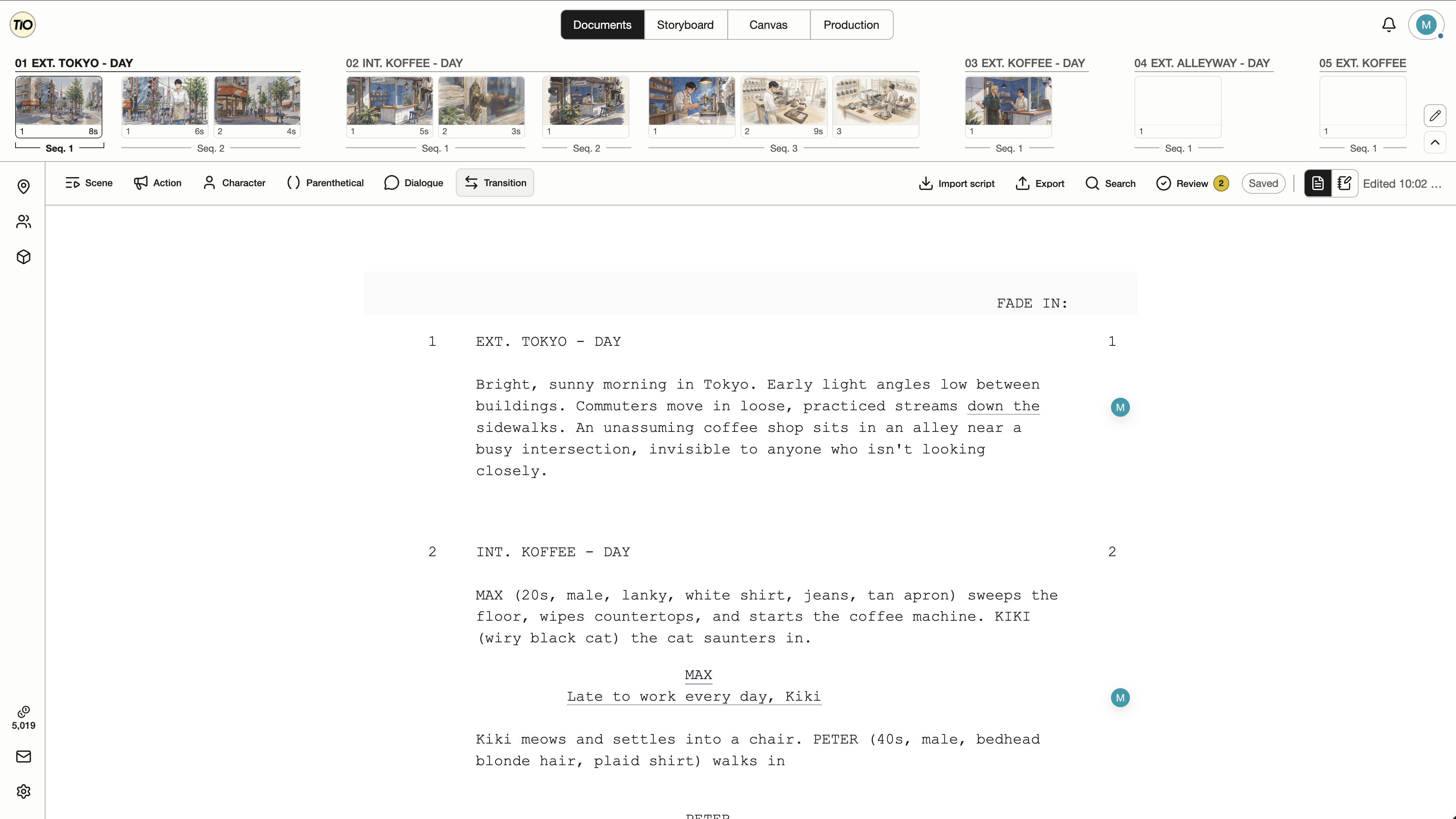
| Control | What it does |
|---|---|
| Tab and Shift+Tab | With the cursor in the Script Editor, press Tab to cycle the current line through Scene → Action → Character → Parenthetical → Dialogue → Transition → Scene. Press Shift+Tab to cycle backward. On a blank line, the initial choice can follow the surrounding screenplay context. You can also click a section type in the toolbar. |
| Script section types | Scene establishes where and when the action takes place; Action describes what is seen or heard; Character names the speaker; Parenthetical gives a brief delivery cue; Dialogue contains their spoken words; Transition describes a cut or change between scenes. |
| Enter | At the end of a line, Enter follows the writing flow: Scene to Action, Character or Parenthetical to Dialogue, Dialogue to Action, and Transition to Scene. It also accepts a highlighted Scene or Character suggestion. Inside existing text, it inserts a new line at the cursor. |
Assets from Your Script
The Script Editor automatically detects and tags potential Scenes, Characters, and Props in your writing. You decide which suggestions to accept as reusable assets. Open the Scene, Character, or Prop panel from the universal asset sidebar on the left to review them and add the ones you want to use later on Canvas.
| Control | What it does |
|---|---|
| Potential assets from Documents | Scene headings and Character cues supply asset candidates. Some uppercase names in Action can also be suggested as Characters. Write Props in braces, such as {PHONE}, to identify them in the Script. Detection does not require you to accept every candidate. |
| Add asset | In the appropriate sidebar panel, find a potential asset and click its + button to accept it. The previous/next arrows let you inspect its Script appearances. Where offered, Not an asset dismisses an incorrect suggestion. |
| Using accepted assets on Canvas | Accepted Scenes, Characters, and Props appear in the same universal asset sidebar on Canvas. Add descriptions and reference images to develop them, then use their images as visual context or references for generation. |
Comments in Documents
Keep feedback attached to the writing it refers to. Both Script and Notes Docs support comments on selected text. Use Review in the toolbar to open the comments sidebar alongside the document.
| Control | What it does |
|---|---|
| Add a comment | Select the text you want to discuss, choose the comment action, and write your comment. Underlined text and margin markers show where conversations are attached; select a marker or thread to return to that passage. |
| Review | Use the filter icon beside the scope heading to choose Open, Resolved, or All. Open a thread to read and reply, then resolve it when the feedback is addressed. Script Docs may also show Script warnings in Review; Notes Docs show comments without those Script checks. |
General Notes
Switch to Notes for freeform ideas, research, outlines, and planning. Use bold, italic, underline, and bullet lists to organize your writing. Formatting appears as you type, with its markers hidden while you edit. List markers display as bullets while you type. Notes stay separate from the Script and do not create Scene structure or asset suggestions. The shared Timeline stays above the Notes editor with the same episode scope and expand/collapse setting.
| Control | What it does |
|---|---|
| Script / Notes toggle | Use the two document icons in the toolbar to switch between the Script and Notes. Notes autosave and support Search, Review comments, and PDF or text export. |
| Notes title picker | Open the title dropdown to choose or manage Notes Docs, or select New Notes Doc to create another note. Notes created within an Episode are visible there and in All Episodes; notes created in All Episodes stay at project scope. |
| Bold, Italic, and Underline | Use Bold, Italic, or Underline in the toolbar, or press Cmd/Ctrl+B, Cmd/Ctrl+I, or Cmd/Ctrl+U. With a selection, the control formats that text. With a caret, it turns the style on or off for new typing; existing text keeps its style. The italic caret slants and the bold caret thickens. You can also type **bold** or *italic* directly. Text exports retain formatting markup. |
| Bulleted list | Use the list button or Cmd/Ctrl+Shift+8 to add or remove bullets on the selected lines. Start a line with *, -, or + followed by a space to display a bullet immediately, while staying on the same line. Enter continues the list; Enter on an empty item ends it. |
| Timeline rail chevron | Expands or collapses the Scene strip above the toolbar in Script and Notes Docs. Selecting a Scene opens its Script and scrolls to that heading. |