
Production
Browse Sequences, organize takes in Kanban, and review videos in Sequence Detail.
Production View
Scenes and Sequences
A Scene provides the story context. Its Sequences organize related video takes: different attempts or alternatives for that part of the Scene. The Grid keeps those Sequences together under the Scene heading. Create and generate with Sequences in Canvas; use Production to compare, review, and download their takes.
Production opens in Grid view. Browse Sequences grouped by Scene, choose a take, and open it for playback and review. Use the view switch at the top left to move between Grid, Kanban, and Rough Cut.
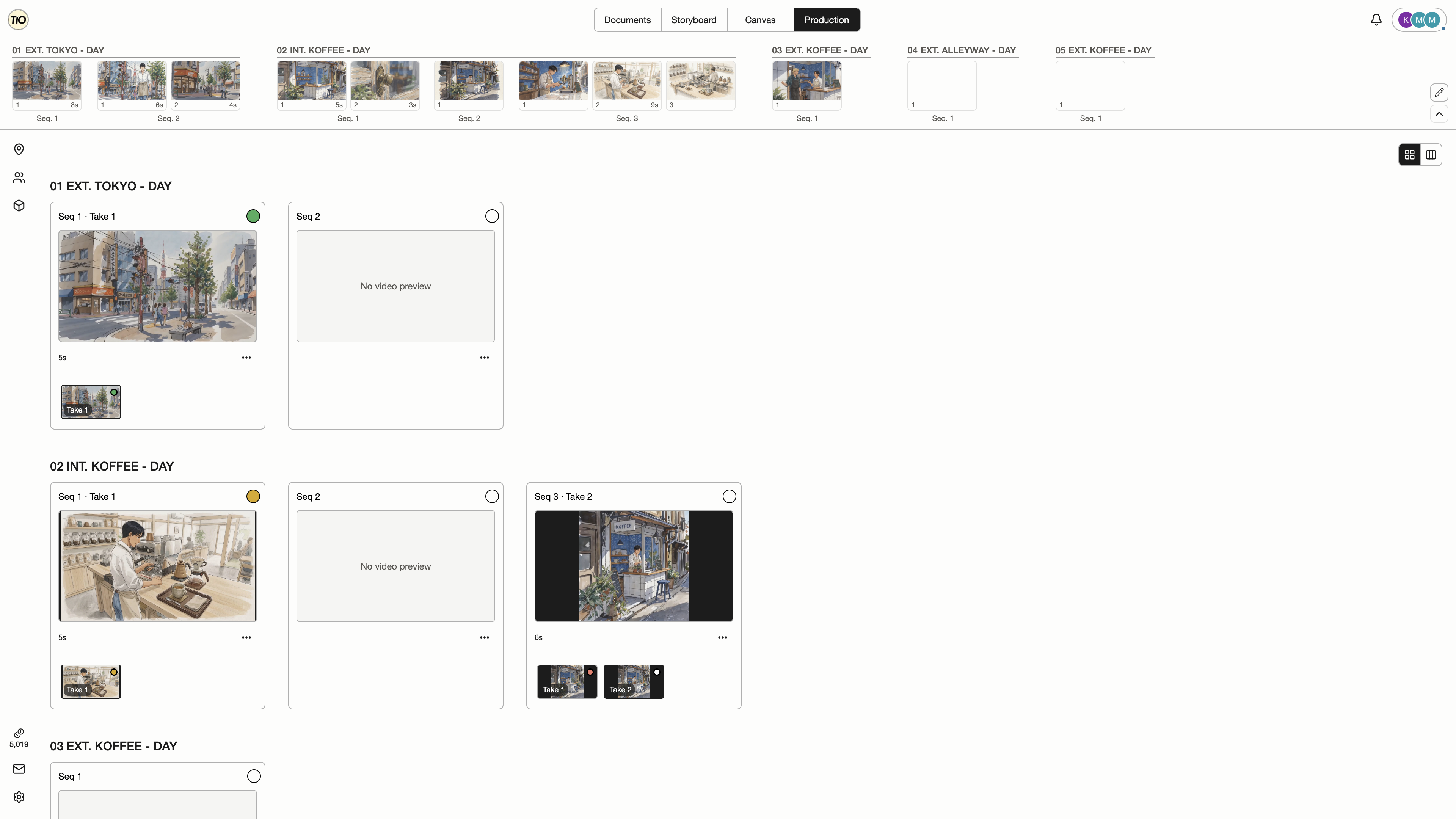
| Control | What it does |
|---|---|
| Open a Sequence | Click its card or main preview to open the selected take. Video playback is available in the detail view. |
| Choose a take | Select a thumbnail below the preview to feature that take on the card. Use the strip’s arrows or horizontal scrolling to reach more takes. |
| Review circle | Use the status circle at the top right of a card to change the featured take’s review status without opening it. |
| Find on Canvas | Locate the selected take’s source on Canvas. In Grid, this action is in the ellipsis menu below the preview. It is unavailable when no Canvas source is recorded. |
| Grid / Kanban | Switch between Scene-based browsing and the review-status board. Returning from detail keeps the layout you last used during this visit. |
| No video preview | A Sequence with no video still appears in Grid. Open it to see its empty state, or return to Canvas to generate or tag a video. |
Kanban View
Kanban organizes individual video takes by review status. Each card identifies its Scene, Sequence, take number, and duration, so you can compare decisions across the current scope.
| Control | What it does |
|---|---|
| Move a take | Drag a card into another column to change that take’s review status. This changes the review decision, not its Scene or Sequence. |
| Open a take | Click a card to open that exact take in Sequence Detail. Cards show still previews; play the video in detail. |
| Review columns | No review means no decision is assigned; Pending keeps a take under consideration; Approved marks an accepted take; Rejected records a rejected option without deleting it. |
| Return to Grid | Use the Grid icon at the upper right to browse by Scene and Sequence again. |
Rough Cut
Choose Rough Cut at the top left of Production to watch the current Episode, or all Episodes in order. Each Sequence plays its most recently approved playable take in full with its original audio. Sequences without an approved take show their ordered Shot keyframes for the planned duration, or 3 seconds when unset. Missing keyframes show the Shot Description, or its number when blank.
Use Play/Pause, the playback slider or thumbnail track to seek, and the audio controls to adjust sound. The buttons beside volume open the current take’s details or comments and pause playback; they are unavailable for Shot previews. Faded track thumbnails indicate Shots awaiting an approved take. Playback starts paused and stops when you leave the view or hide the tab. A failed approved video pauses with Retry. Estimates update as video metadata loads. This preview does not change approvals or saved durations, and does not export a video.
Sequence Detail
Open a Sequence card or a Kanban take to watch the selected video. The title identifies the Scene, Sequence, and take. Use the thumbnail strip below the player to compare takes and the right sidebar to inspect inputs and review the result.
| Control | What it does |
|---|---|
| Video player | Play or pause the selected take and use the playback controls to inspect the result. |
| Take thumbnails | Select another thumbnail below the player to compare takes. Each thumbnail has its own review-status dot. |
| Status menu | Set the selected take to None, Pending, Approved, or Rejected. None corresponds to the No review column in Kanban. |
| Comments | Open the comments panel to read threads across the Sequence’s takes. Add a comment for the selected take or reply to an existing thread; take labels identify which version each thread discusses. |
| Prompt and reference images | Read the selected take’s saved prompt and inspect its generation references or assigned frame. Uploaded videos have no generation prompt. Available originals are shown if a temporary generation input has expired. Missing references show Reference unavailable and cannot be removed from Take history. |
| Script context / View in Script | Expand Script context to read the Scene’s script. Use View in Script to open that context in Documents. |
| Details | Check the selected take’s duration, model, generation mode, aspect ratio, and creator when available. |
| Created by | Created by is the last row of Details in the side rail and shows who generated the selected Shot keyframe or Sequence take. It follows the selected media, not the person who last edited or tagged it. Unknown means no creator is recorded, including uploads and older or sample media. Retry creator lookup is available if the name cannot be loaded. |
| Find on Canvas | Locate the selected take’s source on Canvas. In Grid, this action is in the ellipsis menu below the preview. It is unavailable when no Canvas source is recorded. |
| Untag from Sequence | Remove the take’s link to this Sequence without permanently deleting the video. Its Canvas media, review status, and comments are preserved. |
| Reuse generation | Restore the take’s generation inputs in Canvas to prepare another attempt. Review the settings and explicitly generate when ready. |
| Download video | Save the selected video file to your computer. |
| Back | Use the chevron beside the title to return to your previous Grid or Kanban view. |