
Projects and Project Overview
Set project details, manage episodes, view metadata, and move to another surface using the selector at the top.
Project Overview
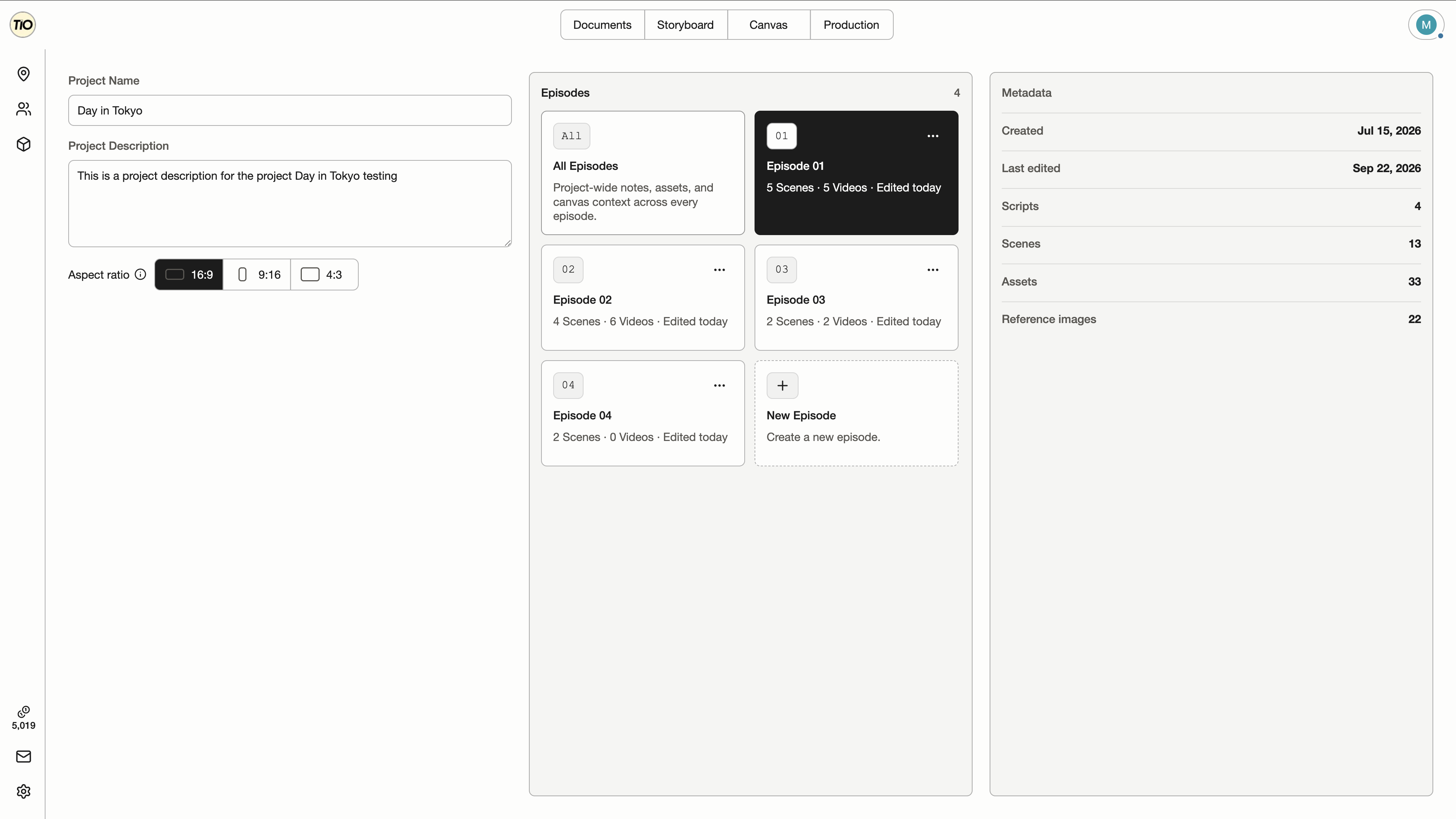
Set the project name, description, and aspect ratio in Overview. Create or rename episodes, view project metadata, then use the selector at the top to open Documents, Storyboard (when enabled), Canvas, or Production.
| Control | What it does |
|---|---|
| Project Name | Edit the project name, then click outside the field to save. |
| Project Description | Add or update the project description, then click outside the field to save. |
| Aspect ratio | Choose 16:9, 9:16, 4:3, or 21:9 for project previews and default image and video generation. Unsupported ratios use the model default. Explicit or restored sizes and source-driven sizing take precedence. |
| Metadata | Read-only counts: created and last-edited dates, scripts, Scenes, assets, and reference images. Last edited updates for real content changes, not for browsing. |
| All Episodes card | Switches the scope to the whole project and opens Documents on the combined Project Script. |
| Episode card | Shows the episode's Scene count, generated video count, and last-edited time. Clicking it sets the episode scope and opens Documents, or Canvas when Script Docs are hidden in project settings. |
| New Episode card | Opens the Create New Episode dialog described below. |
Team workspaces
When Teams is available, personal and team projects use the same Projects home. Choose a workspace before creating a project. Eligible project owners and Team Admins can use Move to… to transfer a project between personal and team ownership.
| Control | What it does |
|---|---|
| Workspace selector | Switch between Personal, Shared with me, and your teams. Each team has a folder icon in its workspace color. Shared with me includes directly shared projects outside your own team memberships. New Project creates in Personal or the selected team; Home returns to the current workspace. |
| Settings | Open Members, Team Workspace Settings, or Credits/Billing beside the sidebar. Team Admins edit the workspace name and color, then choose Save changes or Discard. The separate Danger zone shows the remaining-credit recipient before Delete team opens a confirmation. Editors see read-only workspace details. In Members, enter an existing account’s email, choose Admin or Editor, and select Add to grant team access immediately. The person must sign in with Google first. Role edits and removals use Save; external project-only users remain in Project Access. |
| Team purchases and usage | Team billing contains the credit purchase controls only. Project usage and transactions remain in Credits / limits. Only Team Admins can open team purchasing. |
| Sidebar credits | Project Editors and Admins draw from the shared team credits without member limits. Credits / limits shows the team balance, project usage per person and transactions. Only Team Admins see Team billing and can buy credits. Viewers have no financial access. |
| Project access and copies | Add registered users by email as a project Viewer, Editor or Admin. No project invitation link is needed. External users see it in Shared Projects; team members see it in their Team workspace. Use the permissions menu to change roles or Remove from Project. Team Admins always retain access. |
| Move to… | Choose Move to… from a project card menu or the bottom of Project Access, below the add-user form, then select a destination. Collapsing the settings rail keeps the expanded settings view open. Personal owners can move into teams they administer; Team Admins can move out into their own personal workspace. Existing collaborators retain access, while other Admins become Editors on a move to personal. Future generation uses the destination’s billing; content, project links and historical charges remain unchanged. Agent work and media cleanup do not block moves. Generation, credit holds, uploads and other blocking work must finish first. Check again appears only when blocking work or an error needs to be rechecked. Older projects require migration assistance from klin@tiomagic. |
| Permanently delete a team | A Team Admin can permanently delete a team once work and financial obligations are settled. The confirmation warns that the team, projects and media cannot be restored and shows the exact remaining credits and personal recipient. The team disappears immediately; background cleanup retries as needed and retains financial history. |
The Projects Page
After signing in you land on the Projects page. It lists every project you own or have been invited to as cards, with a guidance panel that suggests the next step for new accounts. From a project, select the TIO Home button to return to your workspace. A loading screen appears immediately and stays visible until the Projects page is ready.
| Control | What it does |
|---|---|
| New Project | Creates a workspace immediately and opens it on Overview as Untitled Project. No naming dialog interrupts you; rename the project on Overview. When the Onboarding Agent is available it opens alongside the new project. |
| Project card | Shows the project title and thumbnail, with the episode count on the left and edited date on the right of one row. Open an available card to enter the project. During an upgrade, an existing project stays visible with its availability status until it can open in this environment. Opening a project fades the page and shows a loading animation until Overview is ready. |
| Users icon | Appears at the bottom left when you have shared a project or are a guest in another project. Select it to view project members and their roles without opening the project. Owners see all members; guests see the owner and themselves. Manage sharing in project settings. |
| Change thumbnail | Choose Change thumbnail from the bottom-right actions menu and select an image. The card updates after the upload saves. A spinner centered over the thumbnail shows upload progress without moving the card contents. A cover is presentation only and is not used as a generation reference. |
| Project actions menu | The actions menu is always visible at the bottom right of the card. Owners can delete a project for all collaborators after confirming. Unsettled billing and active generation, uploads, exports, or agent work must finish first. Media is removed before project data. The card disappears only after deletion succeeds. |
| Retry deletion | If cleanup cannot finish, the owner can retry from the card or confirmation dialog. A partially deleted project stays unavailable for editing. Resolve the reported blocker and retry manually; deletion never retries automatically. |
| Profile settings | Opens account, appearance, and language preferences. Dark mode and the interface language chosen here apply everywhere and are independent of each other. |
| Envelope / Report or share feedback | Opens one feedback form from the bottom of the left sidebar. Write a report and choose Submit; the app confirms when it has safely saved the message. Page, browser, deployment, and privacy-masked PostHog session details are attached when available. |
Creating, Renaming, and Deleting Episodes
An episode is a Script Doc plus everything scoped to it. Create one for each script you intend to produce separately; short pieces can live as a single episode.
On Overview choose New Episode.
The dialog suggests the next title, such as Episode 03. Keep it or type your own name.
Choose Create Episode. The new Script Doc starts with a single placeholder heading, INT. LOCATION - DAY, so the Timeline rail already has one Scene.
The workspace switches to the new episode. Documents opens when Script Docs are visible; otherwise its Canvas opens.
To rename an episode, open the ellipsis menu at the top right of its Overview card and choose Rename Episode. Enter a name, then choose Save or press Enter. Cancel or Escape dismisses unsaved changes. The new title shows in the scope selector and the Production and Storyboard headings.
The Workspace Header
The compact header stays the same on every workspace surface, with the surface switch centered and live-presence status at the right.
Segmented controls keep every available label readable. The filled option is selected; hovering another option does not select it. Long Shot and Sequence selectors scroll horizontally.
| Control | What it does |
|---|---|
| Surface tabs | Click Documents, Storyboard (when enabled), Canvas, or Production in the selector at the top to open that surface. |
| People and live status | Shows who else is in the project right now and whether live updates are connected. See the Collaboration page. |
The Settings Panel
Settings starts with your avatar, name and email, followed by available profile and team controls. Workspace shows the project context, Model Library, Access with a people count, available Credits, Export and any Studio Package. Theme offers Light and Dark with sun and moon icons. Beta features and Admin appear when available. Help contains Documentation and feedback; Sign out sits in the footer. Only platform admins can select the Thruline Agent model; everyone else uses GPT-6 Luna.
| Control | What it does |
|---|---|
| Account and credits | Your account name and email appear first. Admin Mode shows the selected account. |
| Profiles & teams | Open your public profile. Team profile, Members and Team Workspace Settings appear in applicable team contexts and follow your team role. |
| Generation models | Opens Model Library in the main area. Preferences remain account-wide. In team projects, non-admin members can browse models but cannot change preferences from this view. |
| Project access | Owners invite collaborators by email and set Editor or Viewer roles. Covered on the Collaboration page. |
| Export | Opens the expanded Export view for building a ZIP of documents, images, and videos in the current scope. |
| Theme | Theme uses Light and Dark options. Japanese interface and screenplay controls are currently hidden. Theme preferences apply to this browser. |
| Beta features | Under Beta features, switch Image Styles on or off for Canvas generation. Your saved style selection is retained while the feature is off. |
| Thruline Agent model | Thruline Agent is always on when available to your account. Non-admin users use GPT-6 Luna automatically. Only platform admins see the model selector under Admin. |
| Documentation | Opens this public user guide from Account. |