
Comments and Review
Add comments on any surface to collaborate with your team or keep notes for yourself. Reply to comments to continue the conversation, and resolve them when they’re addressed. Let’s explore comments on each surface.
Comments on Documents
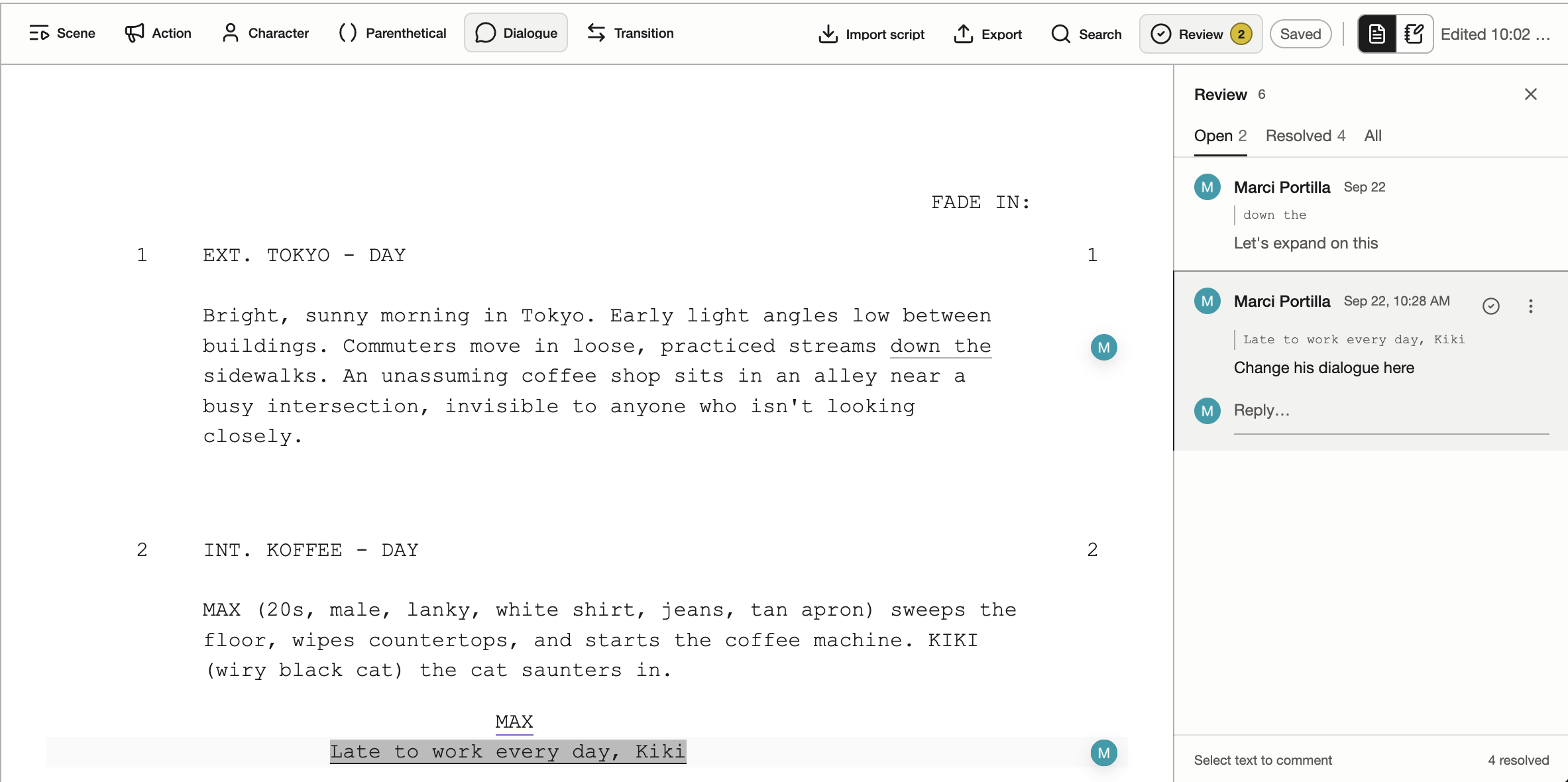
Highlight any text in a Script or Notes Doc, then select Comment in the pop-up. Write your comment and post it. Open Review to read and reply to comments alongside the document.
Each comments rail identifies its scope at the top. Use Internal or Guest-visible to choose the audience, then use the filter icon on the right for Open, Resolved or All. Shot and Sequence rails can also filter by variation or take. Guest-visible threads have a subtle background highlight; a Guest badge identifies comments written through a guest link. Project members can also reply in guest-visible threads. Close stays in the compact scope header; the filter icon sits beside the audience tabs. Shot and Sequence detail open comments with a comment icon. In Guest-visible, write directly on the current scope without choosing a guest link or target from a dropdown; every guest link that can access that scope can see the thread. Filtering does not change the target of a new comment.
Comments on Storyboard
Click a Shot to open Shot Detail, then select Shot Comments to open the sidebar. Add your comment to the selected variation. Comments are grouped by variation, so feedback stays with the version it describes.
Comments on Canvas
Click the Comment icon in the Canvas toolbar, or press C while focus is on the board, to enter comment placement mode. Click anywhere on Canvas to place a comment, type your message, and select Post.
Comments on Production
Open a Sequence in Production, select a take to view its details, then select Comments to open the sidebar. Add feedback to any take within the Sequence; comments stay grouped by take.
Comment Notifications
Click the bell icon at the top right to see open comments in the current episode. Select a comment to jump directly to its location in Documents, Storyboard, Canvas, or Production.