
Storyboard
Plan your story visually, organize Shots into Sequences, and refine each Shot’s media, direction, and review status.
Storyboard View
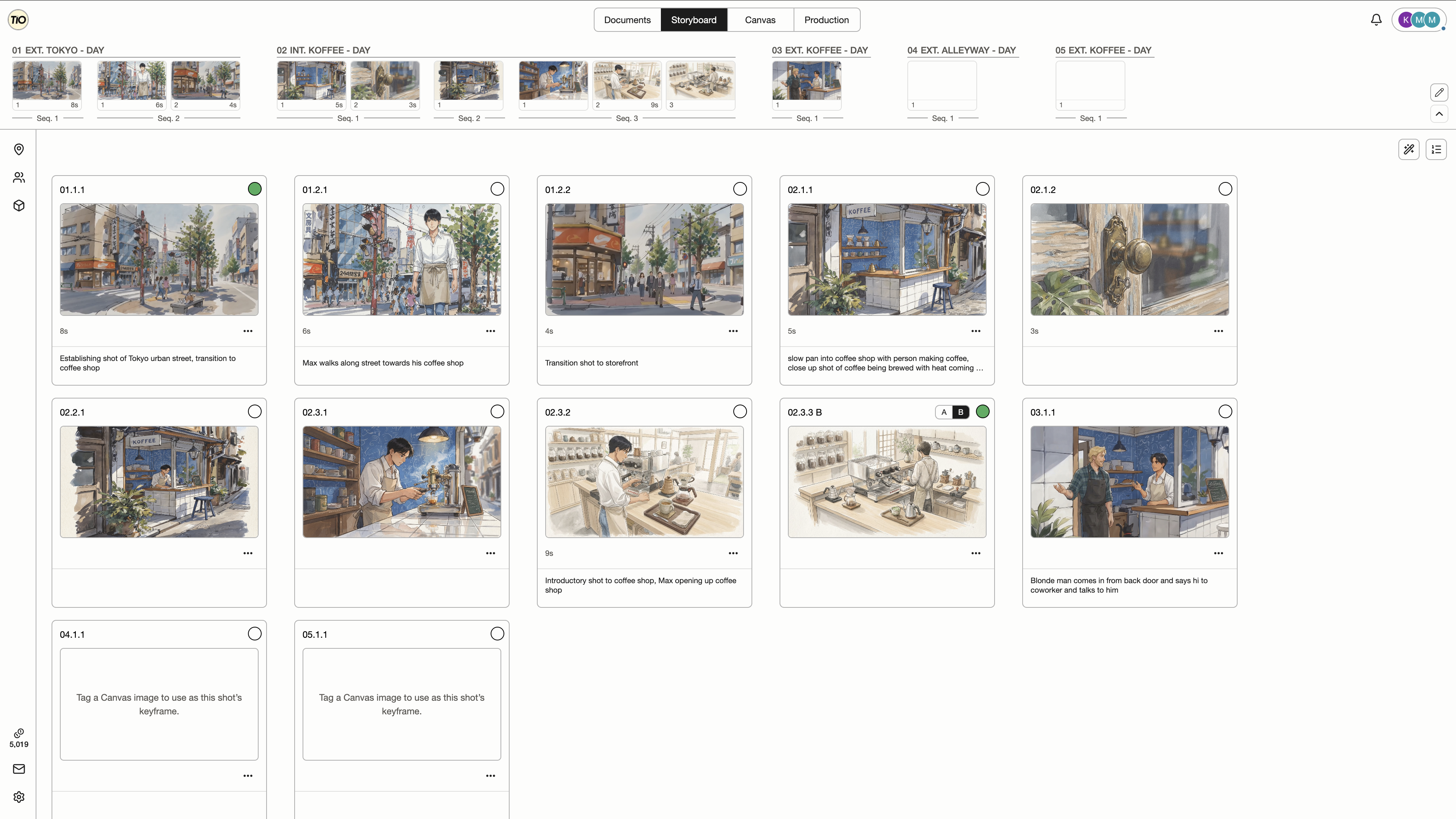
Storyboard turns your Script into a visual Shot plan. Review the story’s flow, compare compositions, and check coverage before making videos. The board follows the current Episode scope; All Episodes shows the whole project. The Timeline above groups Shots by Scene and Sequence, while the grid lets you scan their images, durations, descriptions, and review status. The Storyboard tab is always available.
Choose Cards, Preview, Animatic, or E-konte above the board. Cards fill equal-width columns aligned with the action row and preserve the Project image aspect ratio. Cards and Preview have a zoom slider beside the view options; Preview columns fit automatically and keep the same count when comments open, shrinking the cards to fit. Edit Storyboard order appears before the Storyboard Agent button. Empty Preview images show the Shot Description centered when available. Cards, Preview, and Animatic open the same Shot Comments beside the board. In Animatic, the Shot detail button beside the timestamp pauses playback and opens the current Shot. The preview image does not navigate. The comments button immediately to its right pauses playback and opens comments for that Shot. Animatic fits the preview and compact thumbnail timeline into the workspace, with gaps between Sequences and thumbnail widths proportional to duration; untimed Shots preview for 3 seconds without saving a duration. E-konte presents five Shots per sheet with editable Description and Time cells. All views follow the Project aspect ratio, share the variation selected in Cards or Shot detail, and leave missing images plain grey. Opening Shot detail and returning to the board uses a brief fade, disabled when reduced motion is preferred. Your view and grid sizing are remembered in this browser. Edit Storyboard order temporarily returns to Cards.
| Control | What it does |
|---|---|
| Shot cards | Each card represents a Shot, numbered Scene.Sequence.Shot (for example, 01.2.1). Its keyframe is the first ordered image in Shot Media. Click a card to open Shot detail and refine the plan. |
| Variations and status | Use A/B/C to compare alternatives for the same Shot. The image, duration, description, and status circle follow the selected variation. Switching previews does not change approval; only one variation per Shot can be Approved. |
Editing the Storyboard
Choose Edit Storyboard order in the upper-right toolbar to organize the plan. The grid becomes Scene groups with a row for each Sequence, Shot drag handles, and dashed add controls. Use this view to arrange the order of the action and group Shots into Sequences. Toggle the control again to return to the overview.
| Control | What it does |
|---|---|
| Shot drag handle | Drag the dotted handle above a Shot to reorder it within its Scene or move it to another Sequence in that Scene. Shot numbers update to follow the new order. Storyboard order editing is separate from the Timeline’s pencil mode. |
| Add Shot | Use the dashed Add Shot tile at the end of a Sequence to append a blank Shot, then move it into place. Leave order editing to use the card menu for Add Variation or Delete Shot. |
| Add Sequence | Use Add Sequence beneath a Scene to create a new Sequence containing one blank Shot. |
Shot Detail View
Open a Shot to focus on its selected variation. The large keyframe and variation thumbnails sit on the left; the right sidebar holds direction, media, Script context, and review controls. Use this view to develop the Shot and discuss it with collaborators before generation.
Use + → Select from Canvas to open Canvas with this Shot selected in the Timeline and Shot Details sidebar. Click one image to add it, then keep working on Canvas. Click a Shot Media thumbnail here or in the sidebar to open its image details, download it, or use the available generation actions.
Asset and Shot Media images can be up to 50 MiB each. If an upload fails, check its error and use Retry. If the image was saved but the view could not refresh, Retry refreshes the view without uploading another copy.
| Control | What it does |
|---|---|
| Description | Describe what happens in the Shot and the direction you want to convey. Each variation has its own description. |
| Asset tags | Type @ in Description to find an asset in this Episode. Keep typing to filter, then press Enter or click a name. Suggested asset chips replace matching names in the description with tags. Click a tag to inspect its information and select multiple images. Existing Shot Media images start selected; deselect them to stage removal. Use the fixed footer button to add the selected new images and confirm removals. Closing discards unconfirmed choices. The image grid scrolls after two rows, and the header shortcut opens the asset siderail. The Storyboard Agent also tags unambiguous Episode asset names and aliases in newly generated Shot descriptions. Tagging alone does not add images; removing a tag keeps images already added to Shot Media. |
| Shot Media | Use + to upload an image, choose one from Canvas, or add an asset image. Reorder images to choose the keyframe: the first image becomes the preview. Untag from shot removes a media link while keeping its source image. If a reference is unavailable, use Remove image from Shot on its placeholder to remove the link. |
| Script context | Expand Script context to read the owning Scene’s action and dialogue. Use View in Script to open that Scene in Documents. |
| Details | Set Duration, Shot Type, and Camera Movement. Created by identifies the keyframe’s creator when available, or shows Unknown. |
| Review status and Shot Comments | Set the selected variation to None, Pending, Approved, or Rejected. Shot Comments opens threads across the Shot’s variations; each thread identifies its variation, and new comments target the selected one. |
| Variations and navigation | Select a thumbnail below the keyframe to switch variations, or use + to add an alternative. Use Back to return to the board or the Timeline to select another Shot. Find on Canvas locates the current keyframe’s existing Canvas image when available. |