
Models and Credits
Choose your preferred models, manage credits, and review billing.
Model Library
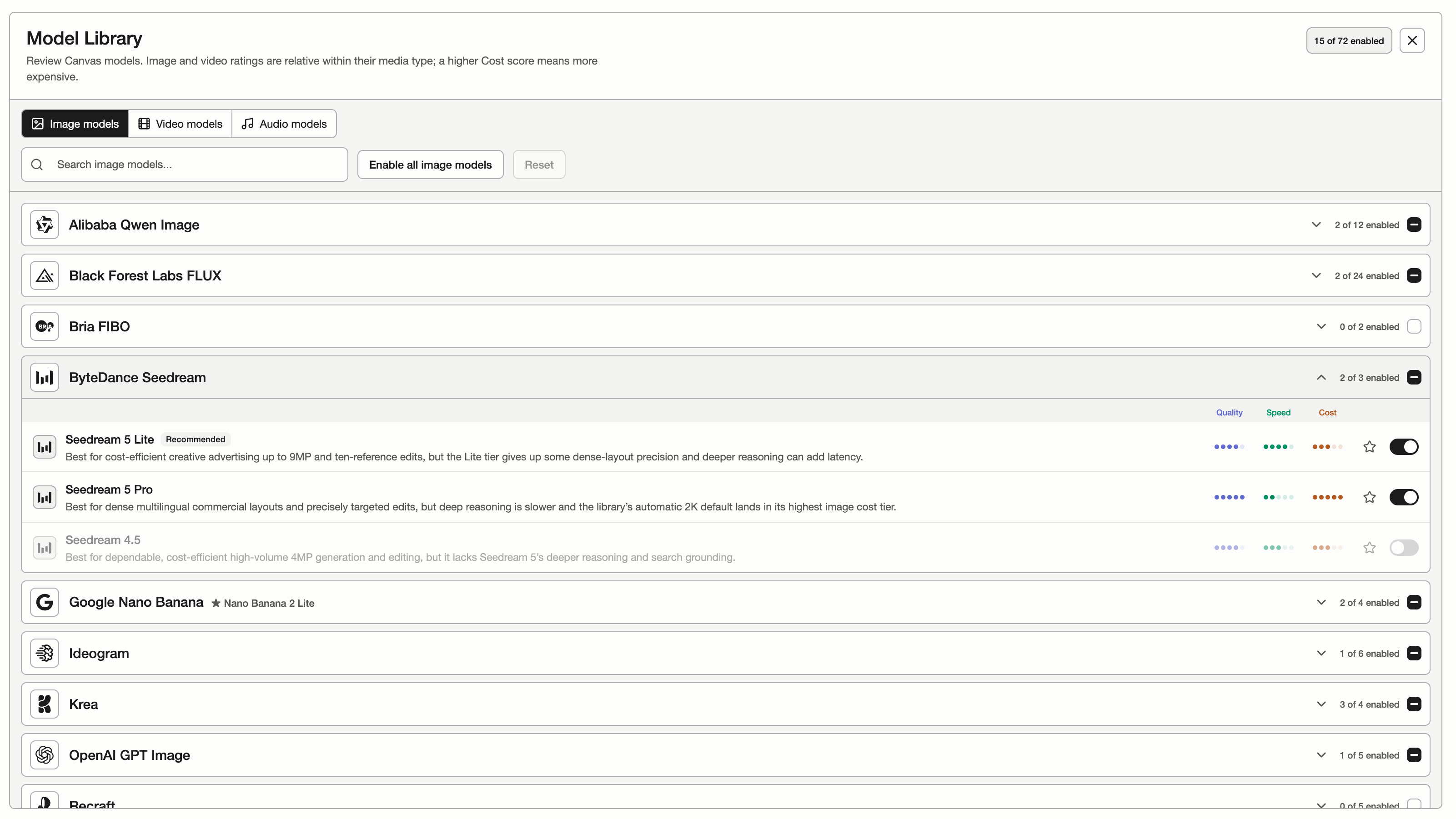
Click the gear icon in the bottom-left corner to open Settings, then select Model Library. Enable or disable your preferred image, video, and audio models, compare their descriptions and quality, speed, and cost ratings, and click the star to choose your favorites.
When available, Thruline Hosted H3 appears under Thruline in the Video model library. It creates 5, 10, or 15 second landscape videos at 720p with dialogue and sound from text. Enable it, select Text to Video, and enter a prompt. Startup can take several minutes. Its credit quote includes a startup allowance and the selected duration. Completed videos appear on Canvas and support the usual Download action.
New accounts and Reset include Seedance 2.0 Standard, Fast, Mini, and Seedance 2.5 in the enabled video models. Existing saved choices and your current favorite stay unchanged until you reset them.
Nano Banana 2.1 is enabled for new accounts and when you reset Image models. It supports text-to-image generation and editing with up to 14 reference images at 1K, 2K, or 4K. Attach images to switch automatically to editing. Existing saved model choices stay unchanged; you can enable it in Model Library. Nano Banana 2 Lite remains the initial default.
Billing and Credits
Paid generation is metered in credits, where one credit is one US cent. Personal account credits shows your signed-in account, its available balance, purchases and history. These credits apply across your personal projects. Team-project credits are shown separately in Credits / limits.
| Term | Meaning |
|---|---|
| Available | Credits you can spend on new generations right now. |
| On hold | Reserved for generations that are queued or running. When the provider reports the real cost the hold is settled and any difference is returned. |
| Owed | A rare case where the final cost exceeded the hold. New credits repay it first. |
| Request generation credits | Opens a request to the studio administrators. Pressing Generate without enough credits opens the same dialog and keeps your draft. |
In Credits mode, the estimate on Generate follows the selected model and settings. You can generate before it arrives or when it is unavailable. The server still checks your balance and reserves credits; when no price can be estimated, it reserves a provisional minimum of one credit rather than showing a made-up price. The final charge can be higher. Platform-funded Onboarding Agent images never touch your balance.
Open Billing and Credits from the credits icon or Credits in Settings. Choose a preset amount, or Other to enter any whole-dollar amount from $1 to $1,000. Other starts with the selected preset amount.
Review the credits and price. Enter a Coupon code and press Apply to preview the discount; the credit quantity stays the same. Changing the amount requires applying it again. Continue to checkout shows the discounted total and carries your code to Stripe.
Billing checks your checkout when you return or reopen the page. Wait while it checks your order and updates credits; a fully discounted order does not require card details. Once confirmed, Credits added shows the amount and the balance updates automatically. If confirmation is delayed, refresh the status or contact support before trying another purchase.
| Control | What it does |
|---|---|
| Billing and Credits | Both the credits icon and Credits in Settings open the same Billing page, showing available balance, amount presets, an Other field, coupon entry, payment status, and purchase history. |
| Buy credits | Buy $1–$1,000 once in whole dollars, at 100 credits per dollar. Purchased credits first reduce credits owed. |
| Other | Open Billing and Credits from the credits icon or Credits in Settings. Choose a preset amount, or Other to enter any whole-dollar amount from $1 to $1,000. Other starts with the selected preset amount. |
| Coupon code | Review the credits and price. Enter a Coupon code and press Apply to preview the discount; the credit quantity stays the same. Changing the amount requires applying it again. Continue to checkout shows the discounted total and carries your code to Stripe. |
| Resume payment | Reopens your existing unpaid purchase. A canceled return does not itself prove a payment failed. |
| Cancel purchase | Cancel purchase closes your unpaid checkout so you can choose a new amount or apply a code. The old checkout link stops accepting payment. If payment already completed, its verified status is shown instead. |
| Payment status | Shows confirmed purchase status and history. Credits are added only after payment verification. |
Studio Package
When available for your account, Studio Package provides included usage for specific models and settings until a fixed expiry. A personal package belongs to you. A Team package is shared across its projects by members and project collaborators who can generate; viewers cannot spend it.
Open Settings → Studio Package from Projects or a workspace to see the current account, included models, remaining usage, and work in progress.
Select Package or the credit balance in the rail, then choose Studio Package or Credits at the top of the Usage mode menu. The menu stays open to show the selected mode’s details. Scroll to see more included models, or select Included usage to open Settings. The choice is remembered separately for each account.
Choose an included model and settings, then check the included-usage quote before generating. Agent and batch reviews keep the funding choice you approved for their jobs.
A successfully saved image uses one image unit. Fixed-duration video uses its requested seconds after delivery is verified. Work in progress temporarily holds units. Confirmed failures release them; uncertain requests stay in progress while recovery checks their outcome. Reusing, downloading, or deleting an existing output does not change usage.
Ordinary credits remain a separate balance. Valid package usage does not require a positive ordinary-credit balance, although an account restriction or outstanding debt can block new generation. Package expiry does not remove ordinary credits previously added to your account.