
Sharing and Live Collaboration
Invite collaborators, understand project roles, follow someone’s work, and recover interrupted edits. The Comments and review guide covers feedback across Documents, Canvas, Storyboard, and Production.
Sharing Projects
Personal-project owners and team-project Admins can add registered Thruline Studio users by email. Ask anyone without an account to sign up and verify their email first.
When Guest access is available, project editors and admins can create a guest link in Settings → Access. Select one episode, its allowed views, and the specific Script or Notes documents to share. Canvas shares the episode’s Canvas. The current episode and view are selected initially. Choose 1 day, 7 days, 1 month, or Never expires. Content stays live, but the link’s settings cannot change after creation; revoke it and create another link to change access.
Guests enter a name each visit; signed-in visitors use their account identity. The project appears blurred behind the entry dialog. Guests can view shared content and create, reply to, edit or delete their own comments. On Canvas, press C and click anywhere to place a comment pin; Escape cancels placement. Only shared surfaces and views appear in navigation, and guests cannot edit content, download or export. Internal comments stay internal permanently. Guest-visible threads appear across links that share their target. Editors and admins can resolve and moderate threads. Returning guests retain their comments in the same browser; matching a name elsewhere does not grant ownership.
Guest Storyboard Cards use the same card grid and spacing as the project Storyboard. Guest Canvas opens at 50%, centered on its content, with the same minimap as the project Canvas. In Production Grid, take thumbnails switch the video preview; click the preview to play it. Comments follow the selected take.
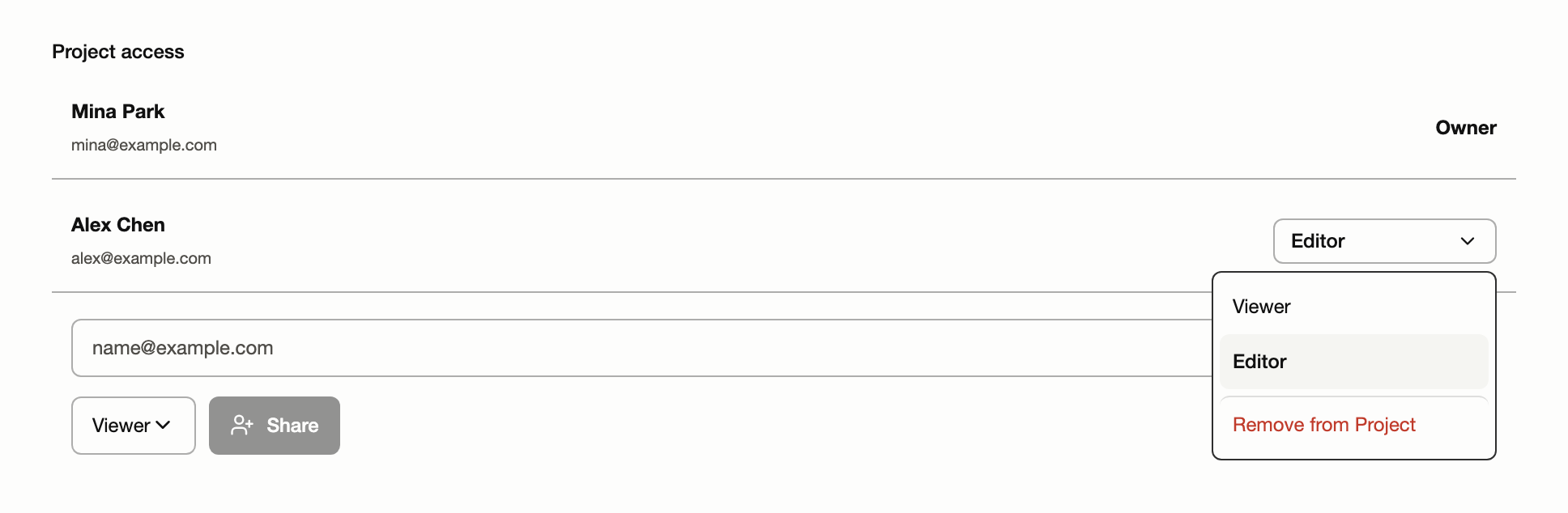
Click the gear icon in the bottom-left corner to open the Settings sidebar.
Select Project access.
Enter the registered user’s email and choose permissions. Select Share for a personal project, or Add to Project for a team project, where Viewer, Editor and Admin are available. External users find it in Shared Projects; team members find it in the Team workspace.
Roles
Roles are per project. The same person can be an editor on one project and a viewer on another.
| Role | What the role can do |
|---|---|
| Owner | Everything an editor can do, plus inviting and removing people, changing roles, and deleting the project. There is one owner: the person who created it. |
| Editor | Write and import scripts, manage assets, generate on Canvas and Production using their own credits, plan Shots, change review status, comment, export, and run agents. |
| Viewer | Open every surface, read scripts, play and download media, follow the Timeline, export files, comment, and set review status where allowed. Controls that would change content are not shown at all. |
Collaborating on Projects
Up to four people can be active in a project at the same time. Everyone sees the same documents, boards, and history, and changes made by one person appear for the others within moments without refreshing.
Documents
Work together in the same Script or Notes Doc. You can see your teammates’ cursors and text selections as they edit, and your changes sync without refreshing the page. Select a teammate in the people menu to open their document and jump to their position.
Canvas
Work on the same Canvas and see your teammates’ pointers, selections, and changes as they happen. Arrange media together, or follow a teammate’s view while discussing the board.
Selecting a person on Canvas opens their Canvas and follows their pan and zoom. Matching borders in their collaborator color outline the Canvas and the Following indicator. The indicator lets you stop. Selecting, moving, resizing, editing, or focusing a generation prompt also stops following, while hovering does not. Following ends if either tab leaves that Canvas or disconnects; select the person again to restart.
One person edits a Canvas text node at a time. While they type, everyone else sees confirmed word and phrase updates within a moment, but cannot select, move, resize, or change that node. Clicking it shows who is editing. When the editor clicks away, their final text is saved and access opens for the next person. Select text nodes with a marquee or Shift-click to group or arrange them with other Canvas objects. Selected text boxes show a border; text being edited by someone else remains unavailable. Temporary connection failures resume automatically when editing authority and the saved text are still compatible. If another editor takes over or the saved text changes, unsaved text remains a copyable Saved draft for explicit recovery. An abandoned edit unlocks automatically after a short expiry. Canvas text keeps its saved color when you switch between light and dark themes.
Canvas automatically merges compatible changes. When edits overlap, the latest saved property wins without a chooser. Deleted objects stay deleted. Recoverable paragraph text appears under Recovered text in the workspace navbar. You can edit and copy this temporary text into an editor; it disappears when you refresh or leave the project. Pending saves whose outcome is unknown are checked before recovery.
When teammates add or move Shots, Sequences, or tagged media together, valid changes are handled automatically. Separate additions are kept, and the last saved move wins. Deleted items stay deleted. If a destination disappears or deletion would remove additional work, review the current items before trying again. Fill refreshes changed inputs once; if they change again, use Run Fill again in the workspace recovery notice.
If Storyboard text cannot be saved after automatic retries, use the workspace navbar recovery notice. Choose Retry save, or open the notice and choose Discard my unsaved edit and load latest. Discard replaces your local text for the affected Scene with the latest saved text; it does not roll back the project. If loading fails, your unsaved edits remain. A temporary recovered-text copy remains available in the navbar.
Timeline recovery first tries to load the latest saved state automatically. A loading warning clears when the Timeline reloads successfully. A warning about a save clears only when your change is confirmed saved and the updated view is loaded. If the result is still uncertain, check the affected Shots or Sequences before repeating the action. In Project needs attention, Error details appears below the message; Load latest Timeline and Report this error are at the bottom.
When collaborators add or remove images in the same asset, independent changes are preserved automatically. Adding the same saved image again keeps one reference; removing an already removed reference needs no further action. A retried request does not bring back a removed image. Separate uploads remain separate images. If an image cannot be added because the asset or media is unavailable, reload the asset and check its current images before trying again.
| Term | Meaning |
|---|---|
| People in this project | Open the avatars in the header to see each active tab and its location. Select a person to visit their document, Storyboard Shot and variation, or Production Sequence and take. Separate tabs appear as separate rows. |
| Cursors and selections | In Documents you see other people's carets and selections in their color. On Canvas you see their pointer and what they have selected. Presence itself never blocks you. Scene and document prose can merge concurrent edits; a Canvas text node instead allows one active editor at a time. |
| Saved | The document's change has been stored on the server. Syncing means it is still on its way. |
| Reconnecting | The connection dropped. Editing pauses briefly; your local changes are kept and sent when the connection returns. |
| Retry connection | If your project offers Retry connection, open the people menu to check its connection status. Reconnection is automatic; Retry connection starts another attempt immediately without reloading the window. Connected confirms the live connection, not that every edit has finished saving. Follow the editor’s saving status for pending changes. |
| Unavailable with Retry | Documents and Canvas automatically retry loading their saved state a limited number of times. If recovery fails, choose Reconnect document or Reload Canvas between the logo and workspace tabs. On narrow screens, open Project needs attention to find these actions. Editing pauses only on the affected surface. These actions refresh its controller, without reloading the browser page. |
| Project needs attention | Competing changes to ordinary Shot details, Sequence settings, project settings, and Canvas properties resolve automatically using the last change accepted by the server. Independent changes are preserved. No action is needed for these resolved edits. Text continues to use its own collaboration behavior. If a save or connection still fails, use the specific recovery action in the navbar. If adding a Shot fails, load the latest Timeline and check whether it appeared before adding it again. Error details and Report this error are available in the navbar dialog. Reporting opens the feedback composer for your review and does not automatically include recovered text. |