
Canvas Timeline Sidebar
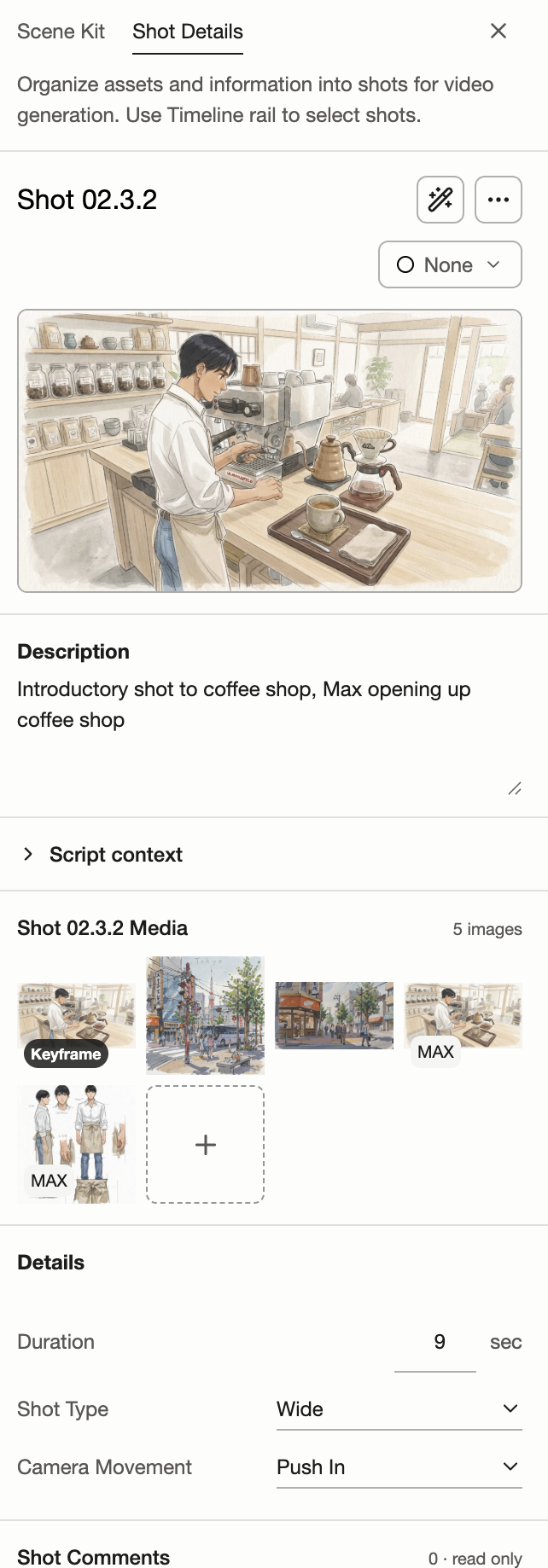
While on Canvas, click a Shot in the Timeline to open the Canvas Timeline Sidebar on the right. Switch between Shot Details and Scene Kit using the tabs at the top.
Shot Details
View the selected Shot’s keyframe, edit its description, and check the Script context and reference media. Set its duration, Shot type, camera movement, and review status, or use Fill to prepare a video draft. Shot comments appear below. Click a Shot Media thumbnail to inspect the image and its available generation details. Use + → Select from Canvas to attach another image to the selected Shot.
Scene Kit
Browse the selected Scene’s reference images and reusable Scene, Character, and Prop assets. Expand an asset to see its images, and open Script context to read the relevant script lines.