
Getting Started
What Thruline Studio is, how the workspace fits together, a guided tour of the sample project, and a tutorial for your first project from scratch.
How Thruline Studio Works
Turn your ideas into videos with writing, visuals, and production in one place. We built Thruline Studio to keep your story and creative work connected, so you can spend less time juggling tools and more time creating.
The Workspace at a Glance
Every project uses the same shell. The header contains the TIO Home button, centered surface tabs, and presence controls. The shared Timeline spans the workspace beneath it, with the universal sidebar and working surface below. Switch surfaces without losing your place.
| Term | Meaning |
|---|---|
| Overview | The project's home tab. Edit the name and description, read progress counts, and open All Episodes, a single episode, or a new episode. |
| Documents | A continuous white writing surface in both themes. Script Docs hold screenplay text that the app reads for Scenes, Characters, and Props; Notes Docs hold freeform text such as treatments and research. |
| Canvas | An infinite board for images, video, audio, and text. The composer at the bottom generates new media, and right-click menus tag media to assets, Shots, and Sequences. |
| Storyboard | Shot planning for one episode: ordered Shots with keyframes, A/B/C variations, camera details, and the Sequence grouping that video generation uses. You can hide the tab in Settings if you do not need it. |
| Production | Where video is generated Scene by Scene and reviewed. Each Scene owns one or more Sequences, and each Sequence keeps every generated video with its review status. |
| Universal sidebar | The same compact icon rail on the left of every surface, below the Timeline when shown. It opens reusable Scenes, Characters, Props, feedback reporting, and Settings without leaving the surface you are on. On Canvas, Timeline selection opens Scene Kit or Storyboard in a separate right-side context rail. |
| Timeline rail | The strip of Scenes across the top of Documents, Canvas, Storyboard, and Production. Selecting a Scene there changes the active Scene on every surface at once. |
Tutorial: Tour the Sample Project
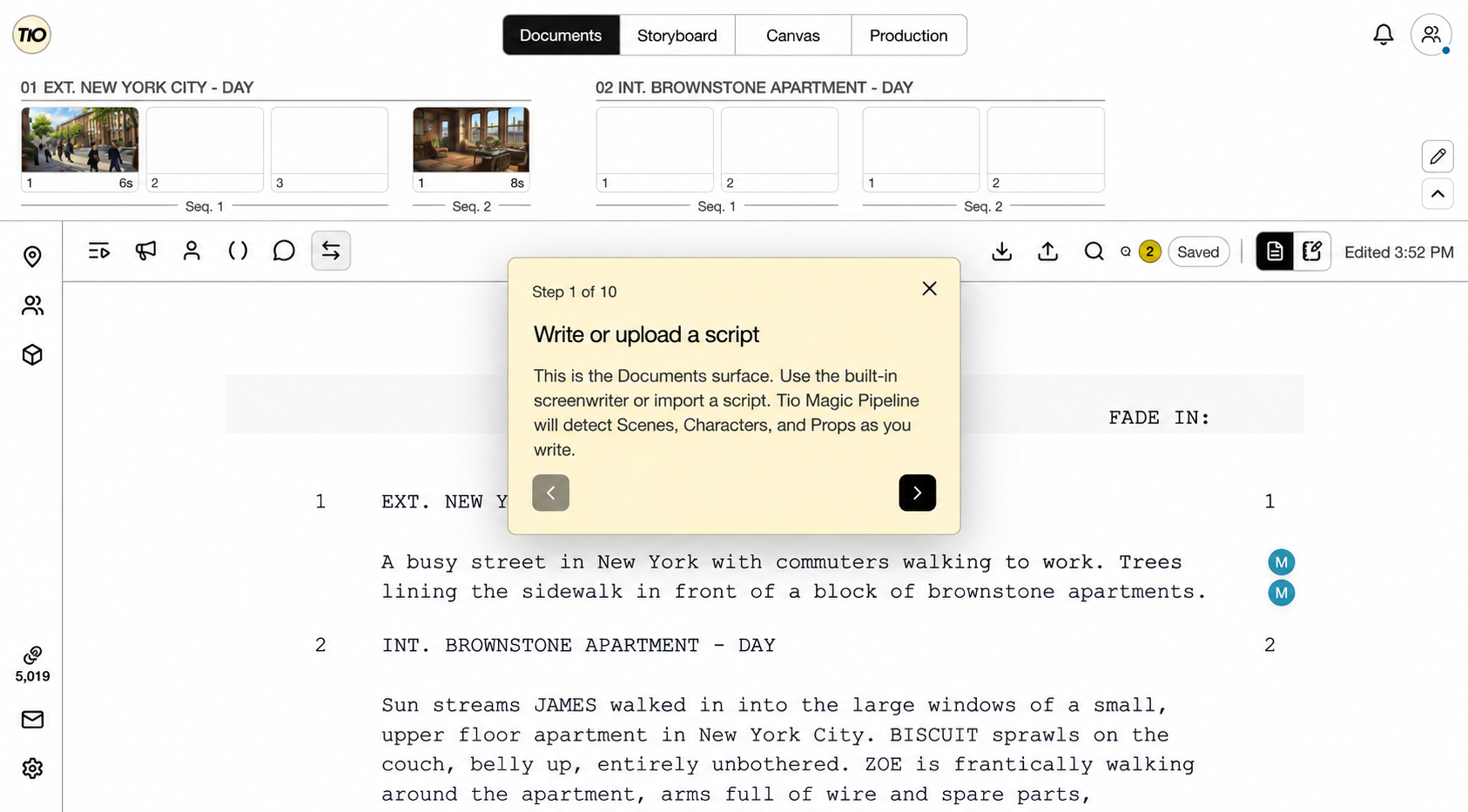
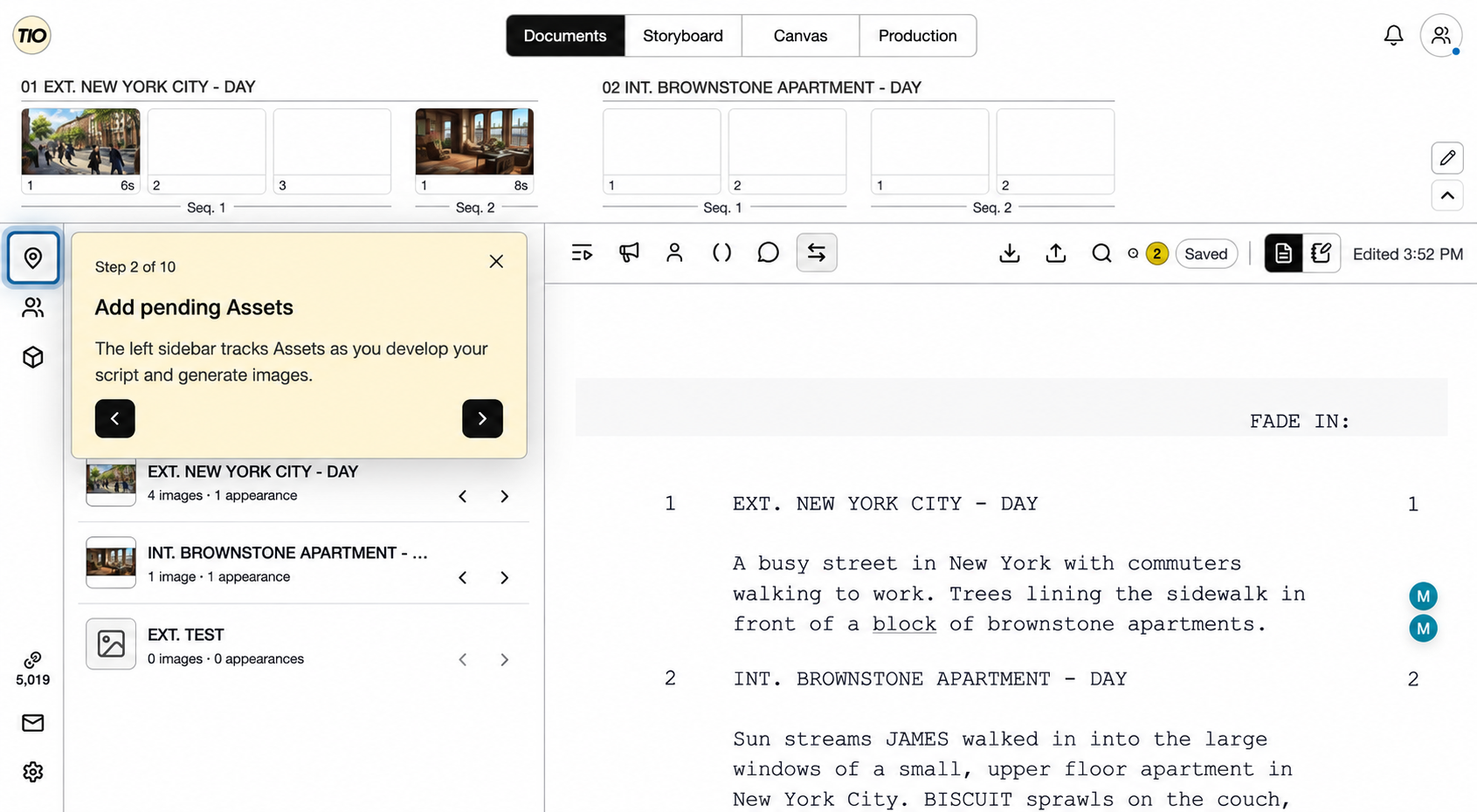
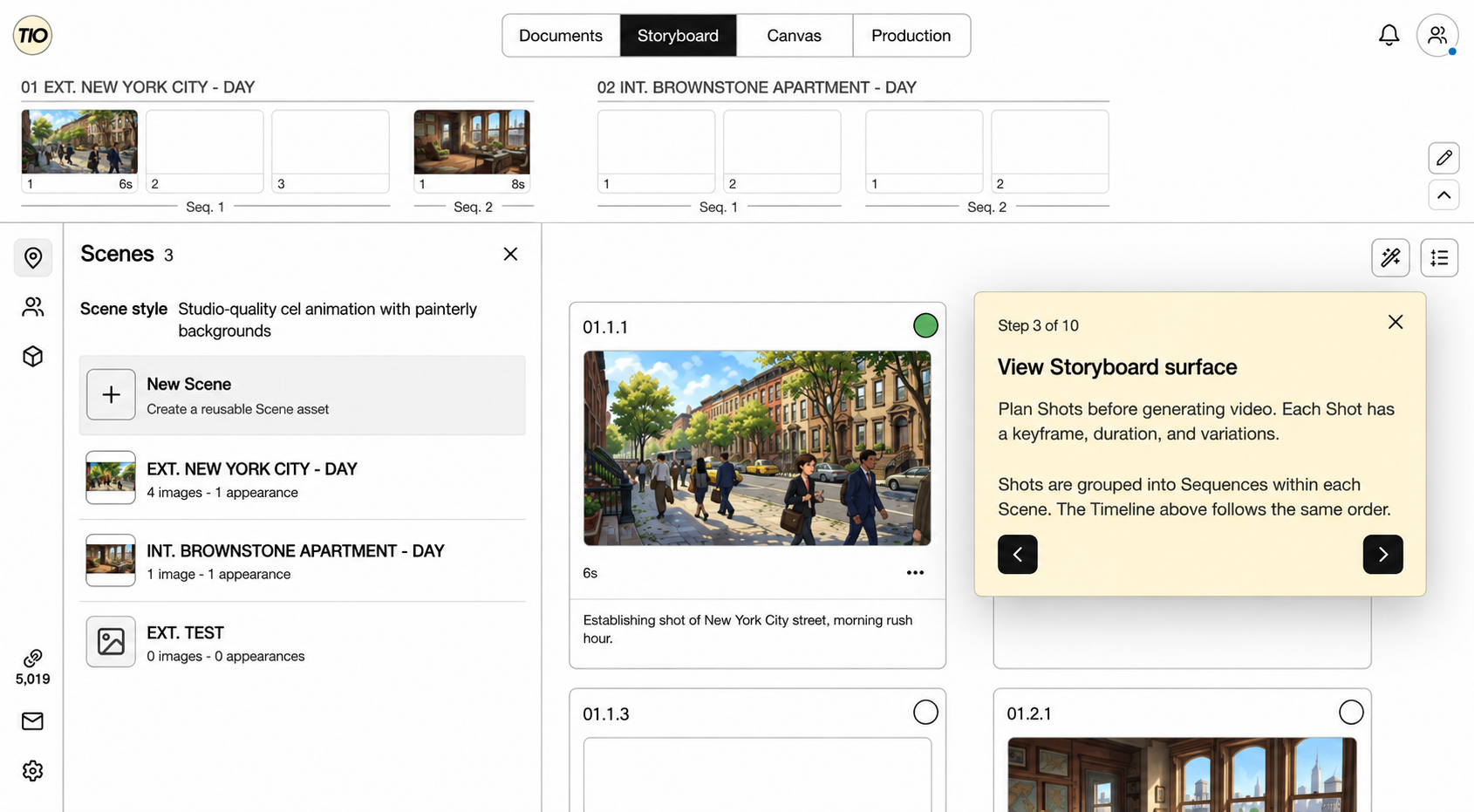
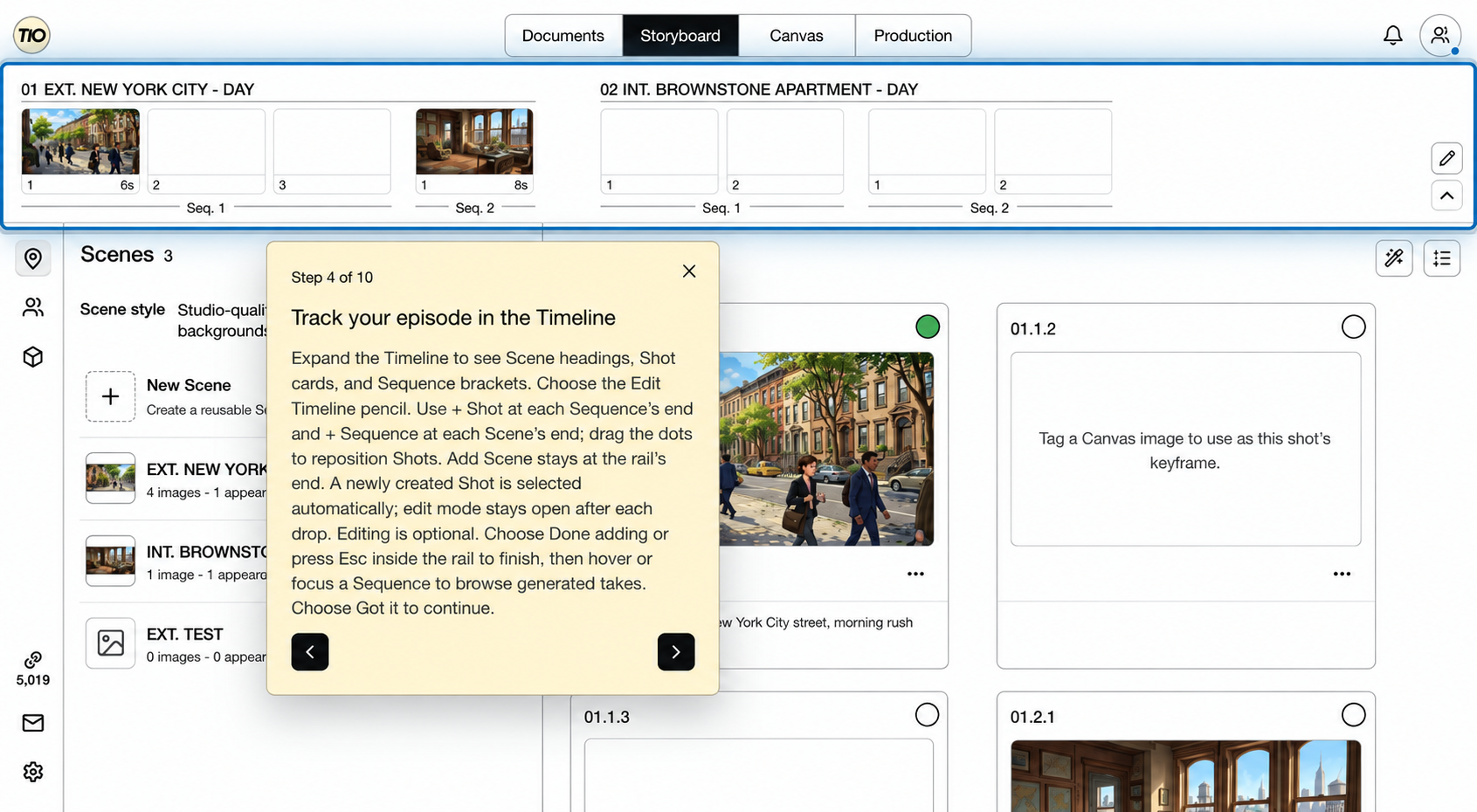
Open WALKTHROUGH: Belly Up from your Projects page, then click Walkthrough in the bottom-right corner. Follow the ten steps below from script to approved video. These images were captured from the sample project’s live walkthrough and enhanced for legibility; your project may have different edits or media.
The screenshots show a completed walkthrough reopened in reference mode. Use its left and right arrows to revisit each step. On your first run, completed actions advance the guide automatically, and the Storyboard and Timeline introductions use Got it. You can learn the workflow with the existing sample media; generating new media is optional. The guide is available to the sample project owner; collaborators can use the shared project without advancing the owner’s walkthrough.
Write or upload a script. Start in Documents and read the sample screenplay. For a new script, use the editor or Import script. On the first walkthrough run, Auto fill Scene inserts the second Scene. Scene headings, Character cues, and Prop mentions give the project its story structure and help Thruline detect reusable assets.
Documents: write or import your screenplay Add pending Assets. Open Scene Assets in the left sidebar. If INT. BROWNSTONE APARTMENT - DAY is pending, choose Add; if it is already listed, open it to inspect its reference images. Accepting a detected candidate creates a reusable asset, so later images and planning share the same Scene identity.
Assets: accept and reuse detected Scenes View Storyboard. Open Storyboard and inspect the Shot cards, their keyframes, durations, and variations. Shots are grouped into Sequences within each Scene. This turns the screenplay into a visual plan before you spend credits on video, and the Timeline follows the same order.
Storyboard: plan keyframes and Shots Track your episode in the Timeline. Expand the rail to read its Scene headings, Shot cards, and Sequence brackets. To change the plan, choose the Edit Timeline pencil, then + Shot or + Sequence, or drag Shot handles to reorder. Choose Done adding or press Esc inside the rail when finished. This shared structure keeps planning and generated takes organized across surfaces; editing is optional during the tour.
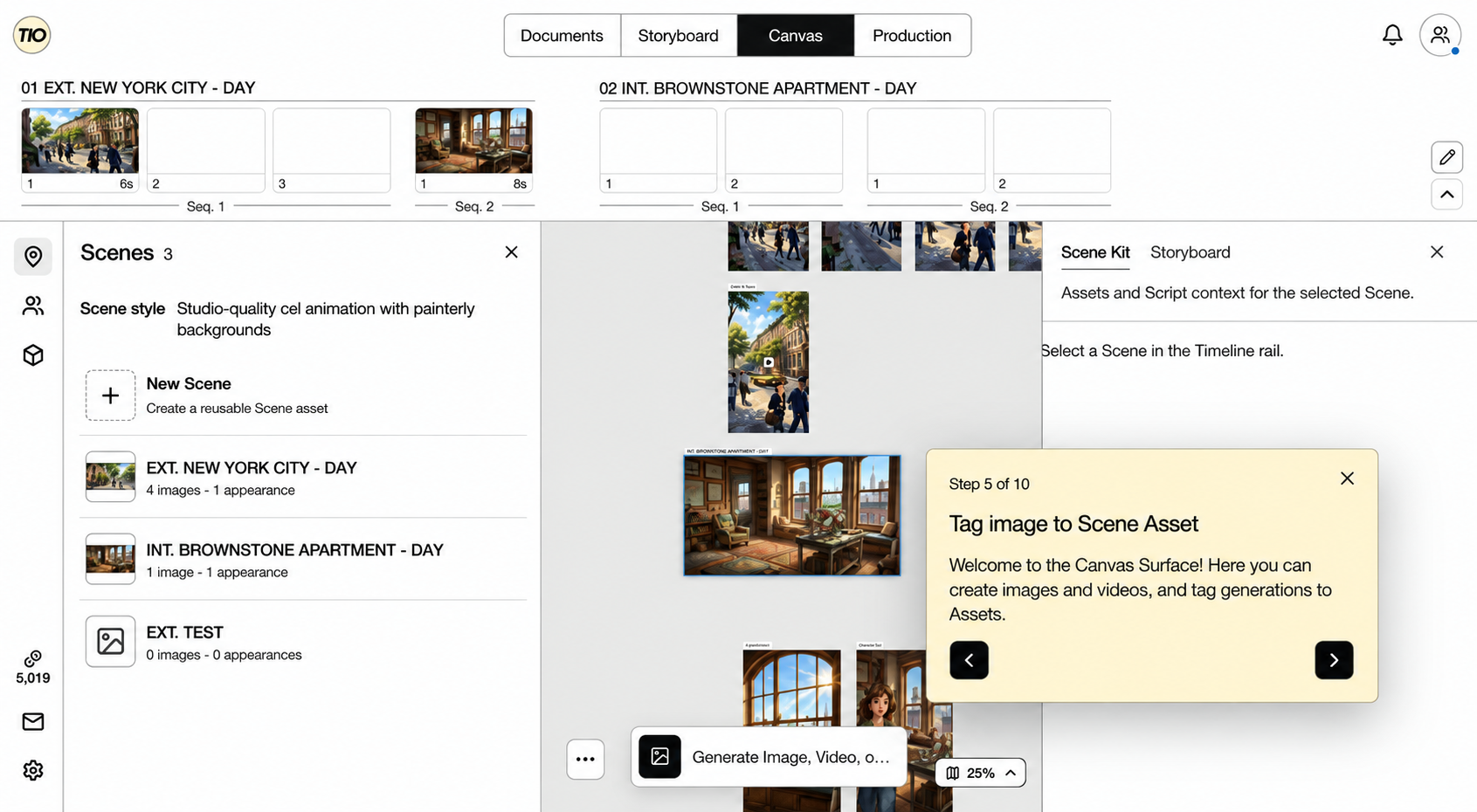
Timeline: organize Scenes, Sequences, and Shots Tag an image to a Scene Asset. On Canvas, right-click the living-room image and choose Tag to Asset → Scene → INT. BROWNSTONE APARTMENT - DAY. If the badge already shows that Scene, the link is in place. Tagging makes the image a reusable location reference, helping you carry the same setting into later generations.
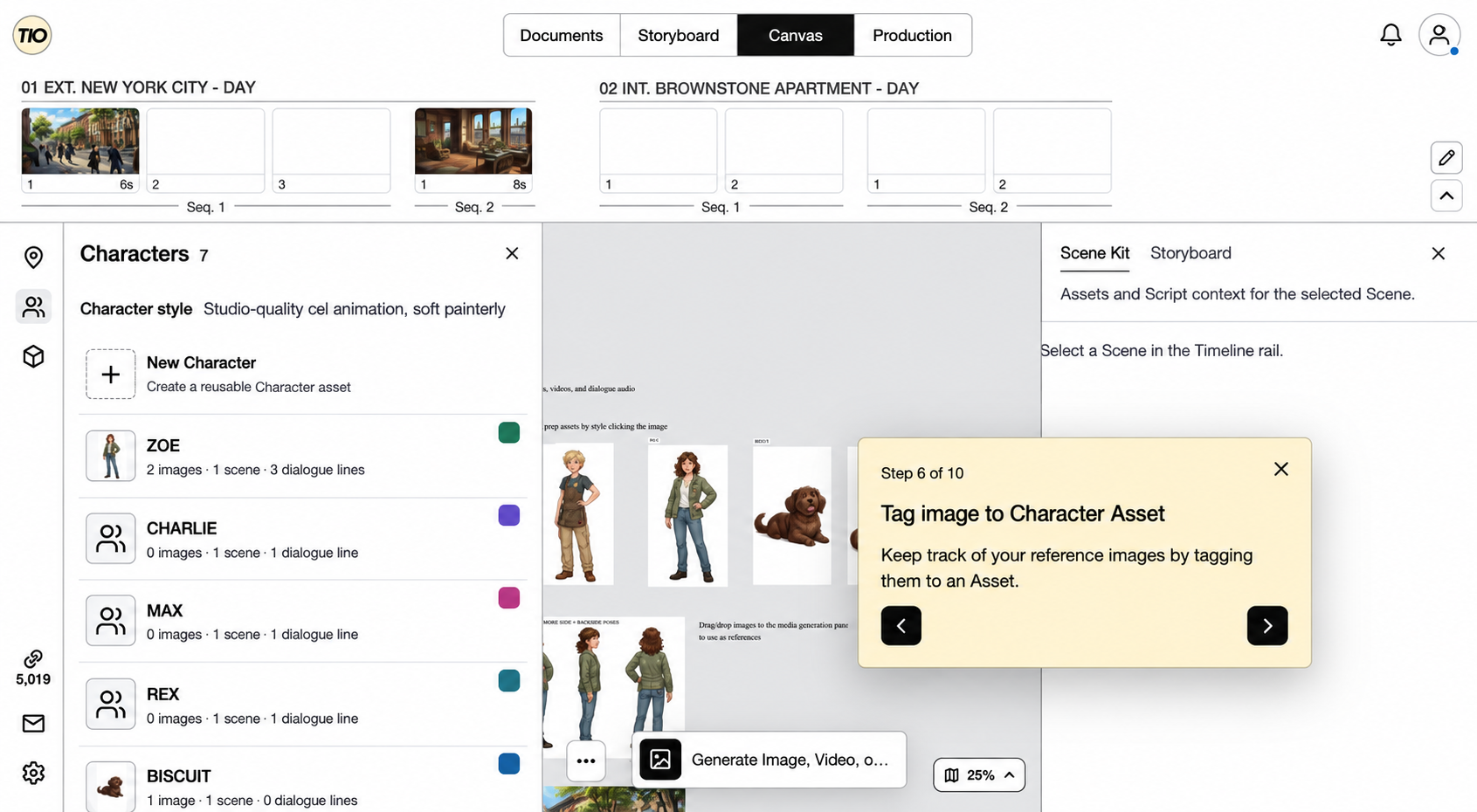
Canvas: connect an image to its Scene Tag an image to a Character Asset. Right-click the dog image on Canvas and choose Tag to Asset → Character → BISCUIT. Select Scene 02 in the Timeline to inspect its Scene Kit. Character references keep BISCUIT’s appearance available alongside the Scene’s location references, so you can reuse consistent visual context.
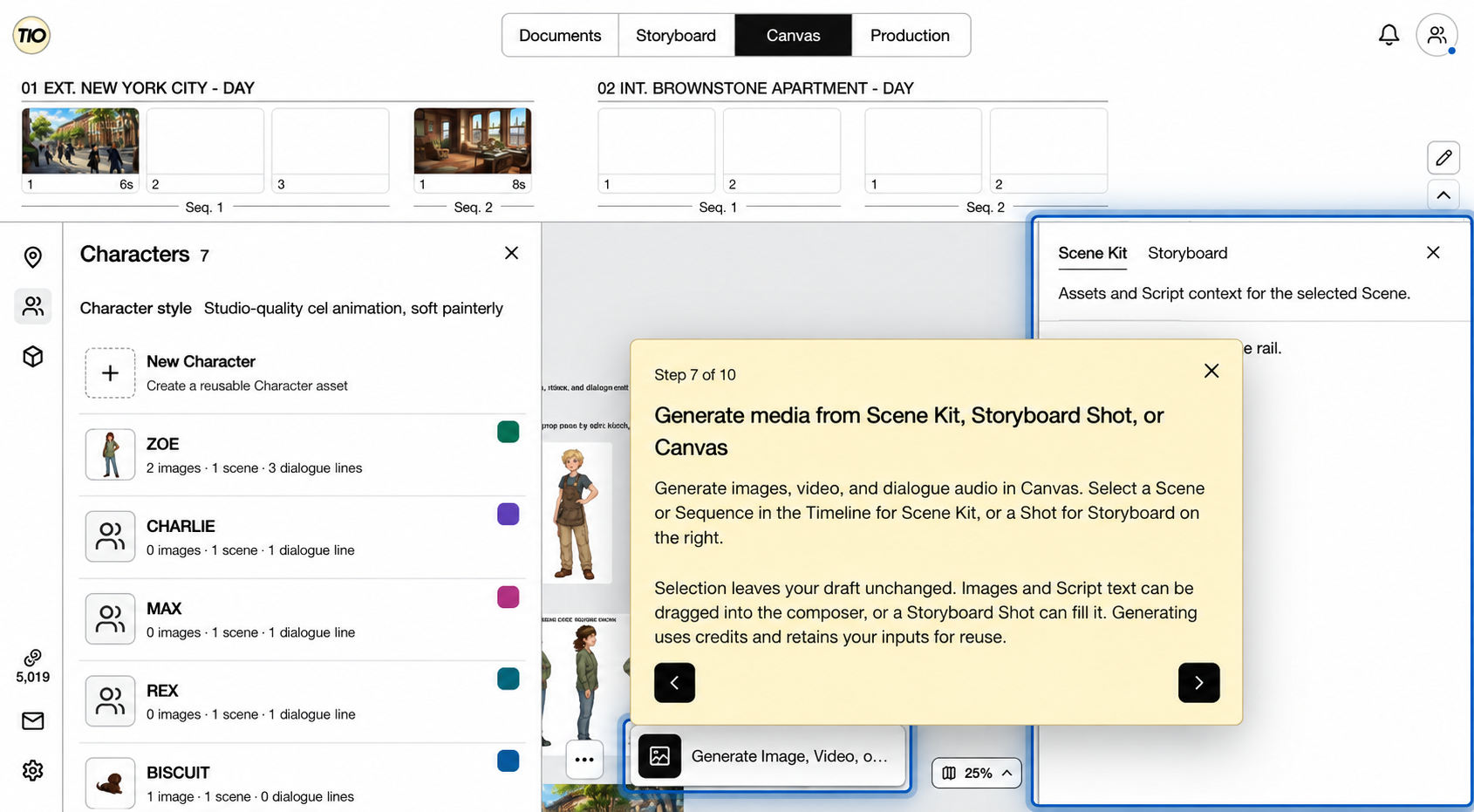
Canvas: keep Character references together Prepare media in the generation composer. Select a Scene or Sequence for Scene Kit, or a Shot for its Storyboard details, then open the Canvas generation box. Drag an image or Script text into the composer, or fill it from a Storyboard Shot. Selecting a Timeline item alone leaves your draft unchanged. Deliberately adding references and a prompt gives the model useful context. Generate is optional and uses the selected funding mode; inputs remain available for reuse.
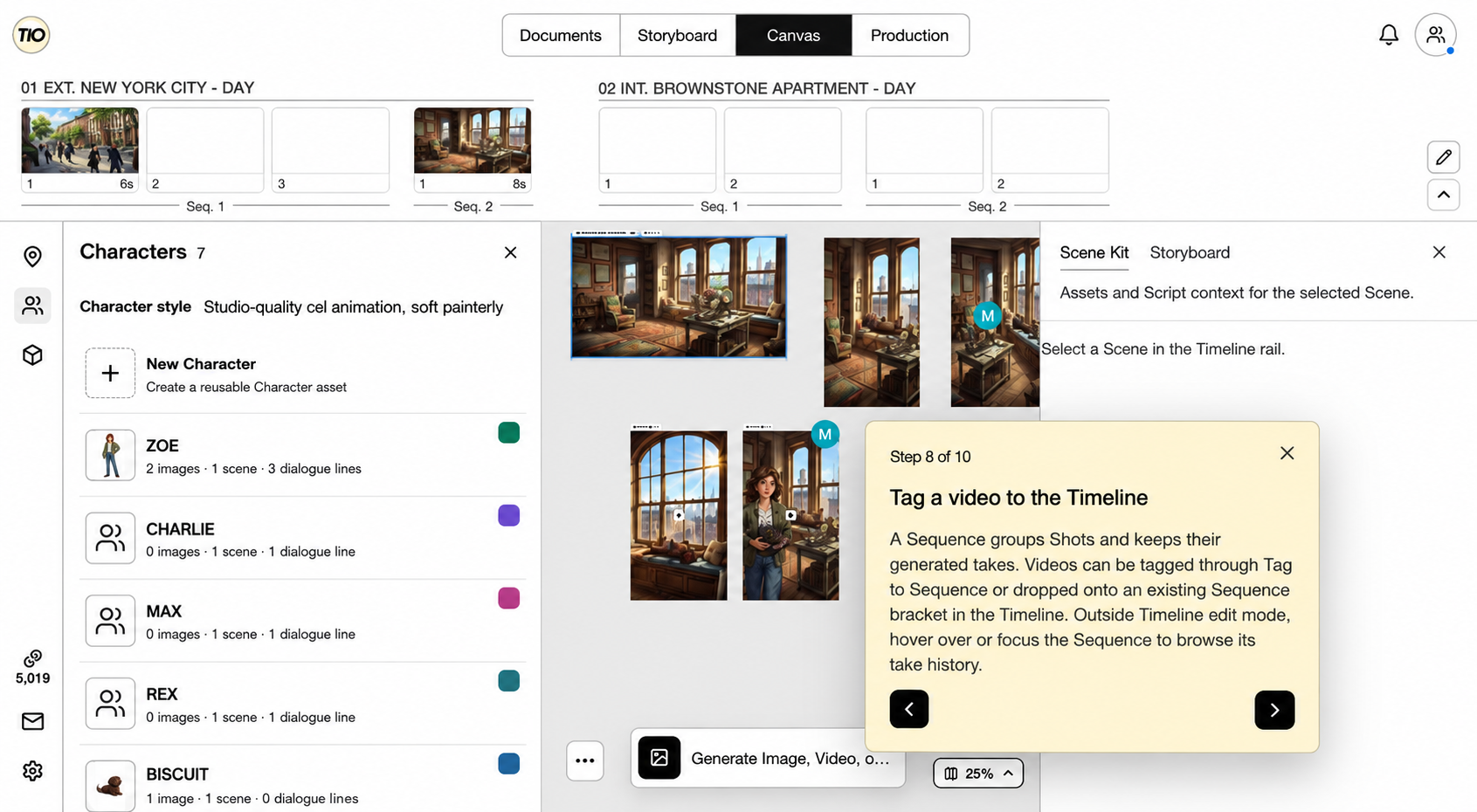
Generation: prepare references and a prompt Tag a video to the Timeline. Right-click a sample video, choose Tag to Sequence, then choose INT. BROWNSTONE APARTMENT - DAY and Sequence 1. You can also drop a video onto an existing Sequence bracket. This connects the clip to the planned Shots and keeps multiple takes together. Outside edit mode, hover over or focus the Sequence to browse its take history.
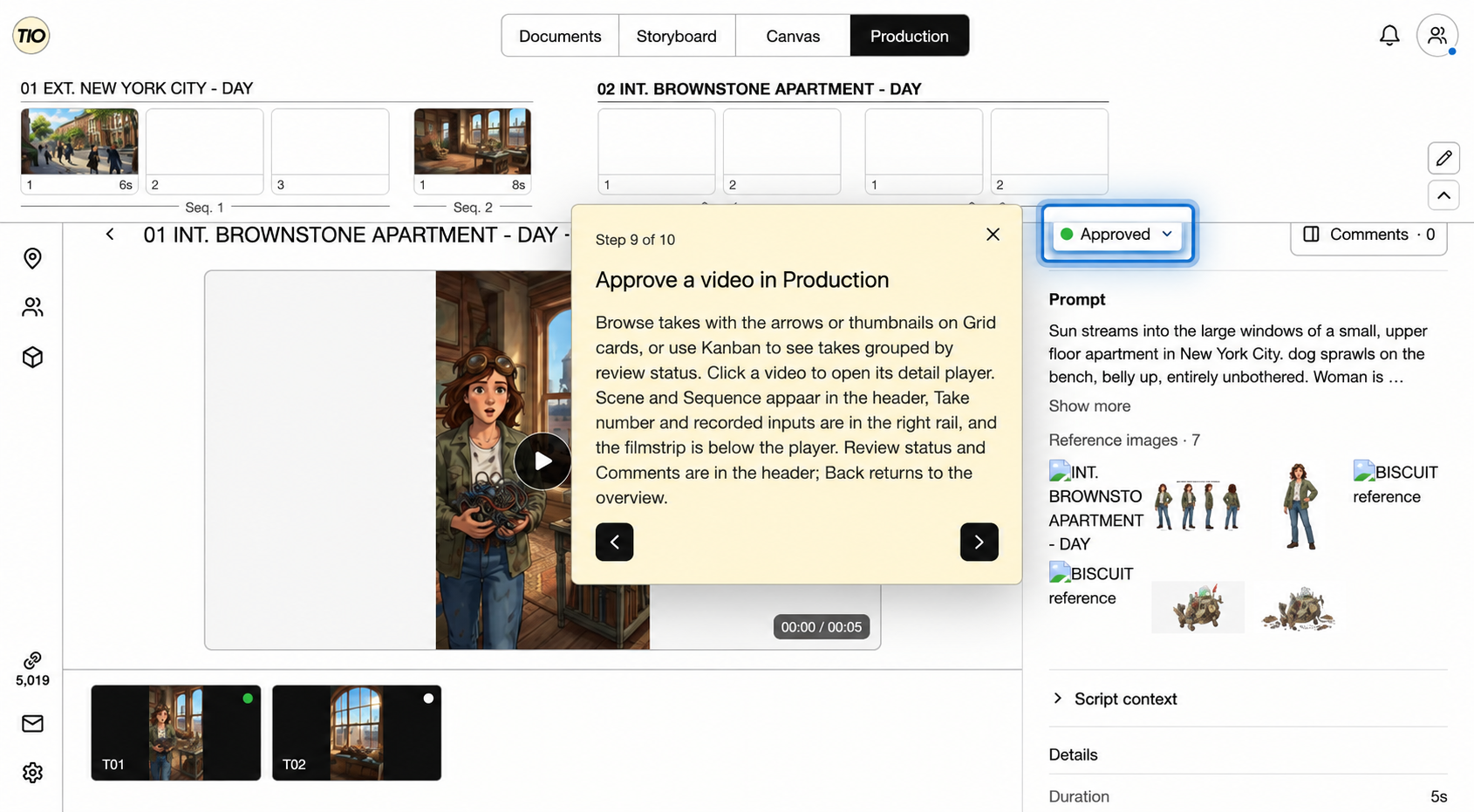
Timeline: attach a video to a Sequence Approve a video in Production. Open a take in Production and review it in the detail player. Use the filmstrip to compare takes, then choose Approved from the header’s review status when you are happy with one. Approval records which version is ready to use and makes it eligible for the Approved videos export. The captured sample is already Approved.
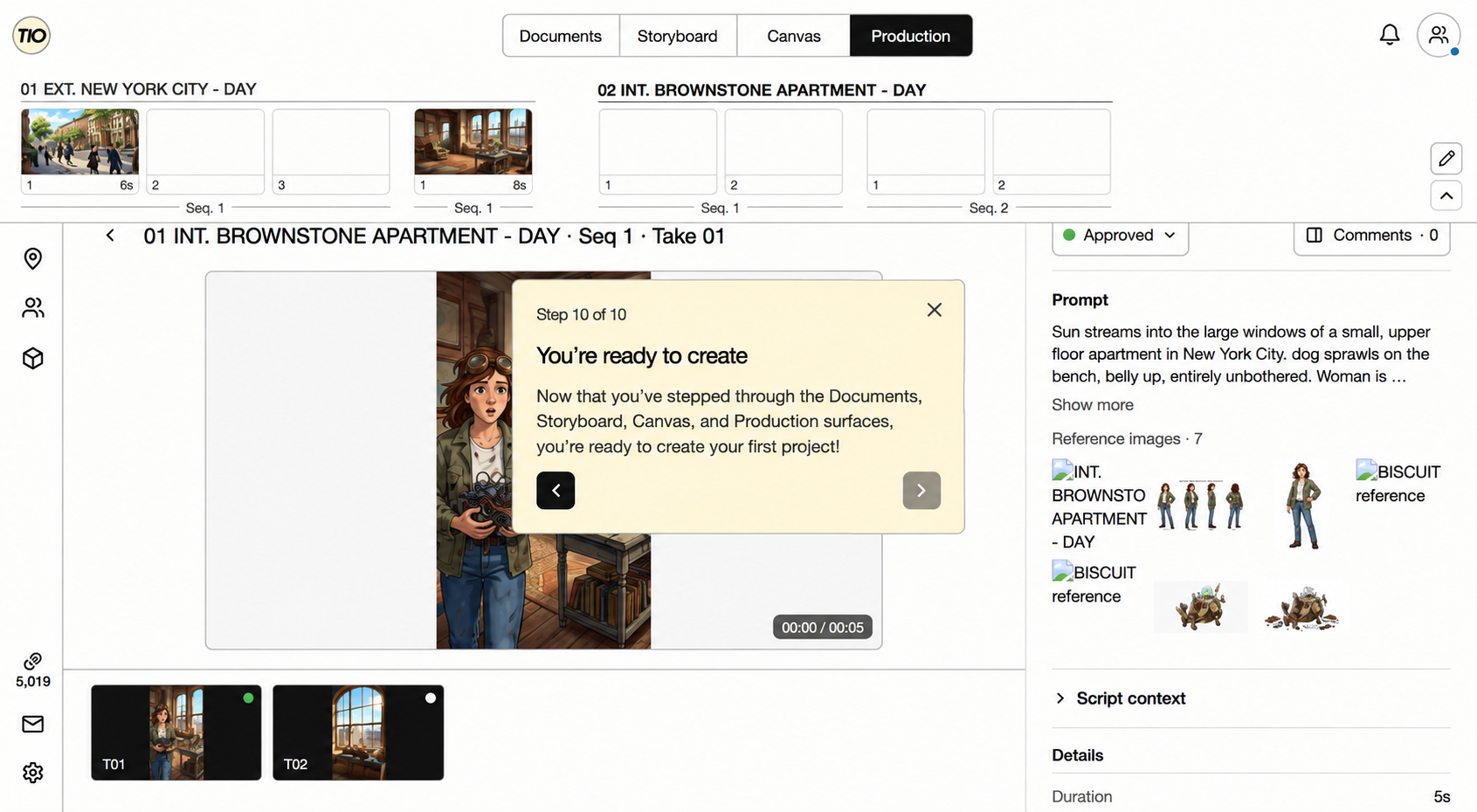
Production: review and approve a take Start your own project. You have followed the path from a screenplay to assets, Shot planning, generation context, and an approved take. On a first run, choose Go to my projects; in reference mode, close the completion card and return to Projects using the TIO Home button. Keep the sample project as a reference when you build your own.
Finish: bring the workflow to your own project
Tutorial: Your First Project From Scratch
Follow one Scene from script to an approved video, then export the result. Use your own short script or a few original lines. Generation uses credits or an assigned Studio Package allowance; the sample-project tour above lets you learn with prepared media first.
On the Projects page choose New Project. The workspace opens on Overview as Untitled Project. Click the Project Name field, type a real name, and press Enter. If the Onboarding Agent panel opens on the right, you can paste a script or describe your idea there instead of doing steps 2 and 3 by hand; see the Agents page.
Edit the project name and description here; they describe the whole project. Open the Documents tab. The first episode's Script Doc is already selected. Type a scene heading such as INT. COFFEE SHOP - DAY and press Enter, write two or three action lines, then type a character name in capitals, press Enter, and write a line of dialogue. The editor formats each line as you go.
Write scene headings, action, Character cues, and dialogue in the script. Open the Characters panel in the left sidebar. The name you typed appears as a candidate; choose Add so it becomes a reusable Character asset. Do the same in the Scenes panel for the heading if it is still pending.
The left rail opens reusable Scenes, Characters, Props, feedback, and Settings. Open the Canvas tab. In the composer at the bottom, describe your Character, choose an aspect ratio, and press Generate. When the image lands on the board, right-click it, open Tag to Asset, choose Character, and select the Character you created. The image is now that Character's reference image everywhere.
Expand the bottom composer to set an image prompt, model, aspect ratio, and Generate. Repeat step 4 for the location so the Scene asset also has a reference image. Select the Scene in the Canvas Timeline: the right-side Scene Kit shows both images under the Scene you wrote.
On Canvas, Scene or Sequence selection opens references in the right-side Scene Kit. Open the Production tab and click the Scene card. The Scene already has Sequence 1. Press Autofill: the prompt is written from your script and the tagged Scene and Character images are attached as references. Check the credit estimate on the Generate button and press it.
Check the Sequence prompt, model, references, and estimate before queueing a video. While the video generates, the Sequence tile in the Timeline rail shows a spinner. When the card in the history list finishes, play it, then set its review status to Approved. Approved videos become the Sequence preview and are what the Approved videos export collects.
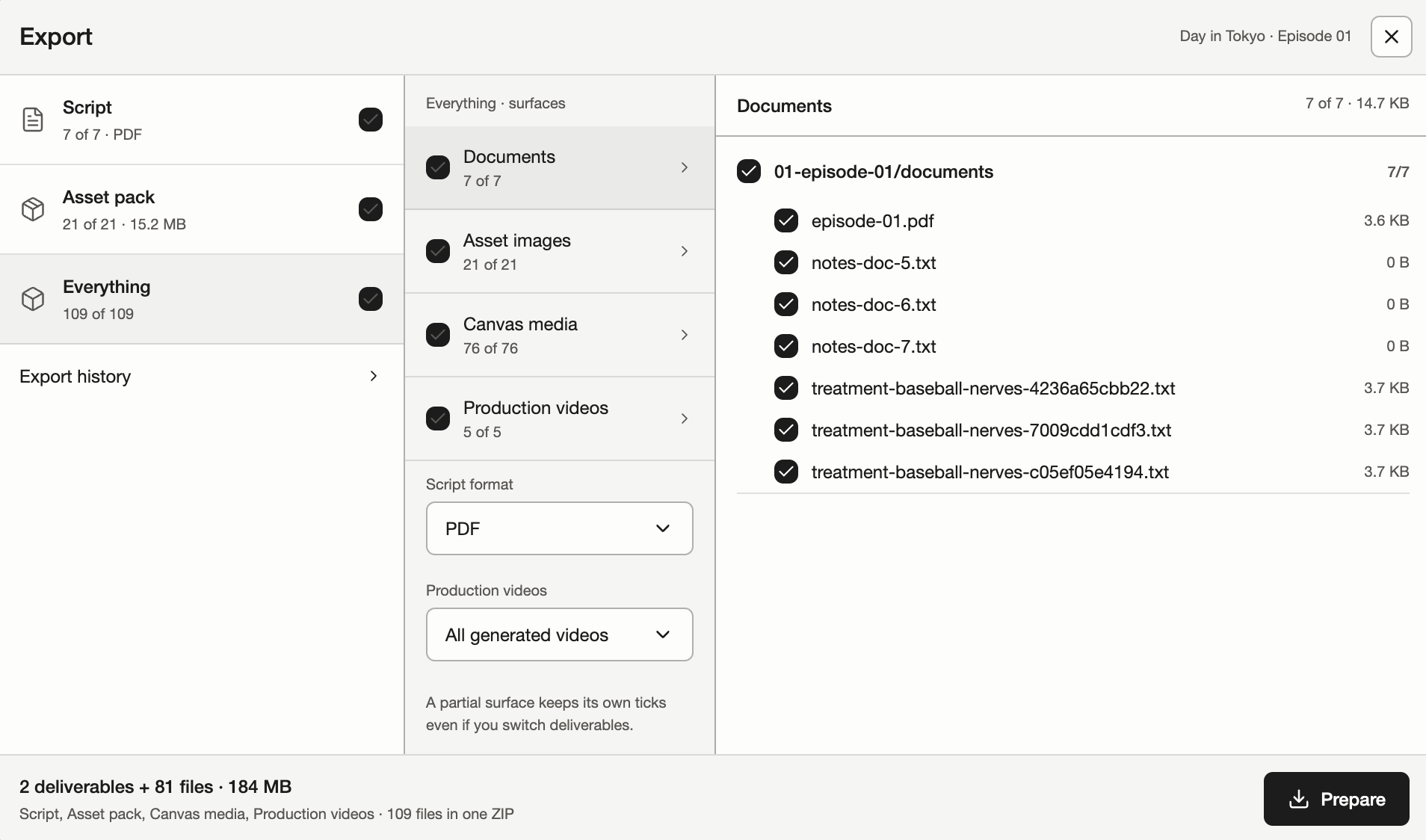
Each history output keeps its own review status. Filter Project export to Approved videos to collect approved outputs. Open Settings and choose Project export. Focus Everything, select the Production videos surface and set its filter to Approved videos. Review the selected files and choose Prepare. Download the ZIP from the job strip when ready.
The Export dialog: choose deliverables, inspect surfaces and files, then select Prepare.
All Episodes Versus One Episode
Your working scope is All Episodes or one episode. Choose an episode on Overview to enter its scope; the surface’s own scope or document selector shows what you are working in. The centered header tabs change the surface, not the project or episode.
| Term | Meaning |
|---|---|
| All Episodes | The whole project at once. Documents shows the combined Project Script, Canvas opens the shared project board, the Timeline rail lists every episode's Scenes in order, and the sidebar shows every reusable asset. Use it for browsing, cross-episode review, and exports. |
| Episode | One Script Doc and everything attached to it: that episode's Notes, its own Canvas board, its Scenes in the rail, and only the assets used or created in that episode. Use it when writing, storyboarding, or producing one script. |